About the screenshots and demo media +
Screenshots show actual app UI. New Windows screenshots use AI-generated nature, cinematic and learning samples, original subtitles and design variants. The existing music and file-information examples are retained. Torrent tasks and figures are isolated demo data, not speed benchmarks. The interactive comparison is a separate web demo; Ubuntu layouts may differ.
Install and launch
Windows · x64
- Choose Install from Microsoft Store on the Downloads page. It opens the Store webpage.
- Install from Store, then find the app in the Windows Start menu. Store also supplies updates. The Ubuntu DEB on this website is not a Windows installer.
Ubuntu 24.04 · x64
- Download the DEB for Ubuntu 24.04 x64. It will usually be saved in your Downloads folder.
- Open the DEB with a software installer, or open a terminal in the folder containing it and run the command below. apt handles the package dependencies.
- After installation, find the app in your applications menu. Choose default file associations in your operating system settings.
sudo apt install ./YNPlayer-1.0.22-1-ubuntu-amd64.debThe command uses the filename currently offered on this website. If the DEB is in another folder, change to that folder first. Installation may require administrator authentication.
Current downloads: Windows (Microsoft Store) v1.0.21.0 · Ubuntu 24.04 x64 v1.0.22-1. A–B repeat is supported from Windows 1.0.4 and included in the Ubuntu download.
Choose a downloadOpen your first file
 View larger ↗
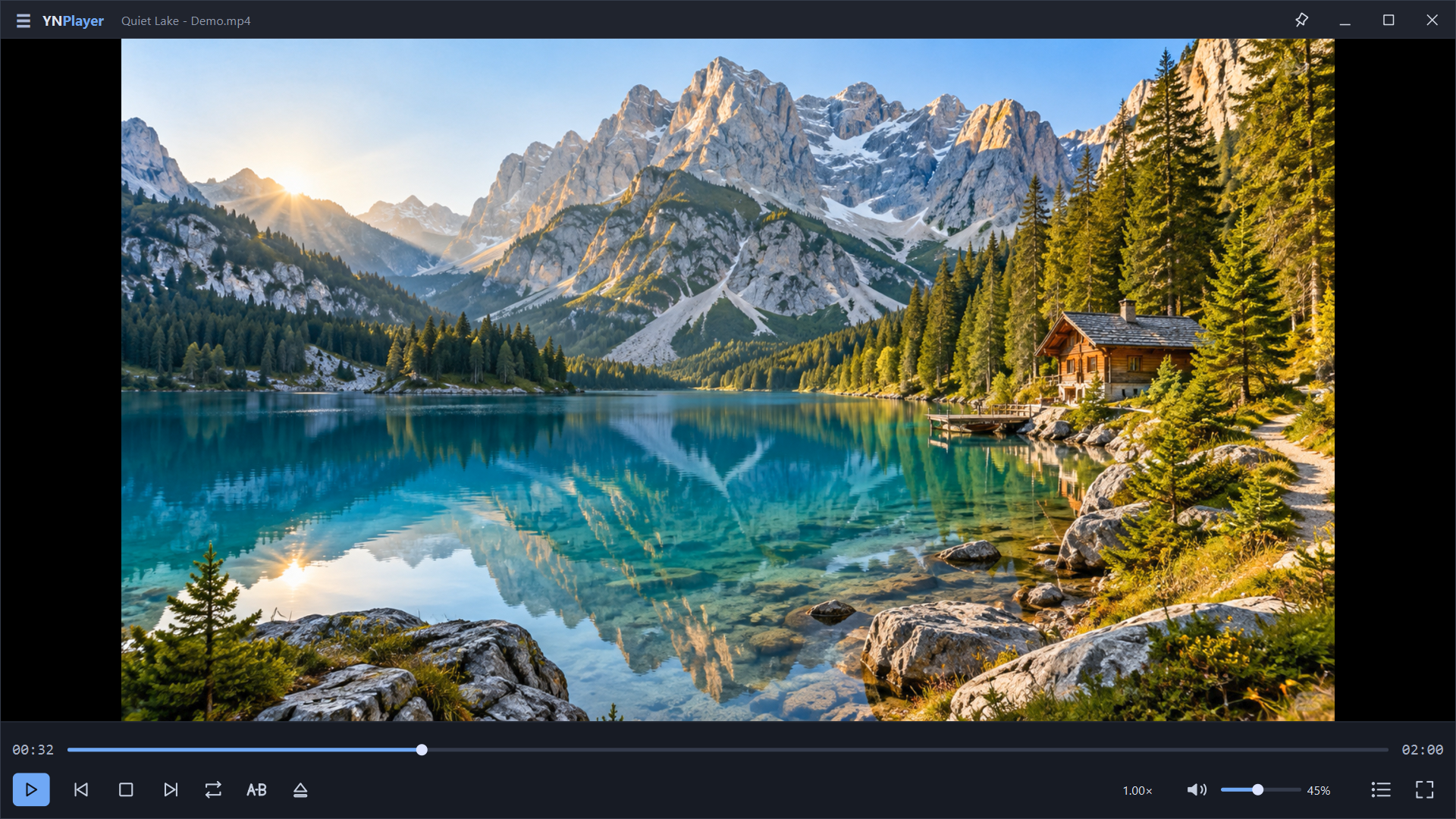
The play button is at the lower left, with the seek bar above it. Follow the steps below to open a file and start playback.
Windows capture · demo media.- Launch YNPlayer and press Ctrl+O or click the folder button on the bottom bar.
- Select a video or music file stored on your PC. Selecting several files creates a playlist and starts with the first file.
- Use Space to pause or play, and use the seek bar to find a position.
- Use Open again to replace the current files. To keep playback and append files to the playlist, use Ctrl+Shift+A.
You can also drop files into the app window. Opening or dropping media replaces the current playlist. Add files keeps current playback and appends items to the end.
Music files switch to the music screen based on their actual tracks. The app is not intended for streaming services or DRM content.
Step-by-step tasks
Seek and use fullscreen
- Press Space to play or pause. Left/Right seeks backward/forward five seconds.
- Drag the seek bar to preview a scene, then release at the desired position. Playback stays playing or paused as it was before the drag.
- Press Enter or double-click the video to toggle fullscreen. Move the pointer to the bottom to reveal hidden controls.
- Use Up/Down or the wheel over the video to change volume by 5%. Press M or click the speaker button to toggle mute.
Escape closes an open playlist first. With the playlist closed, it exits fullscreen. Use Enter to toggle fullscreen directly. Comma/period steps one frame backward/forward and pauses.
Build a playlist and use repeat or shuffle
 View larger ↗
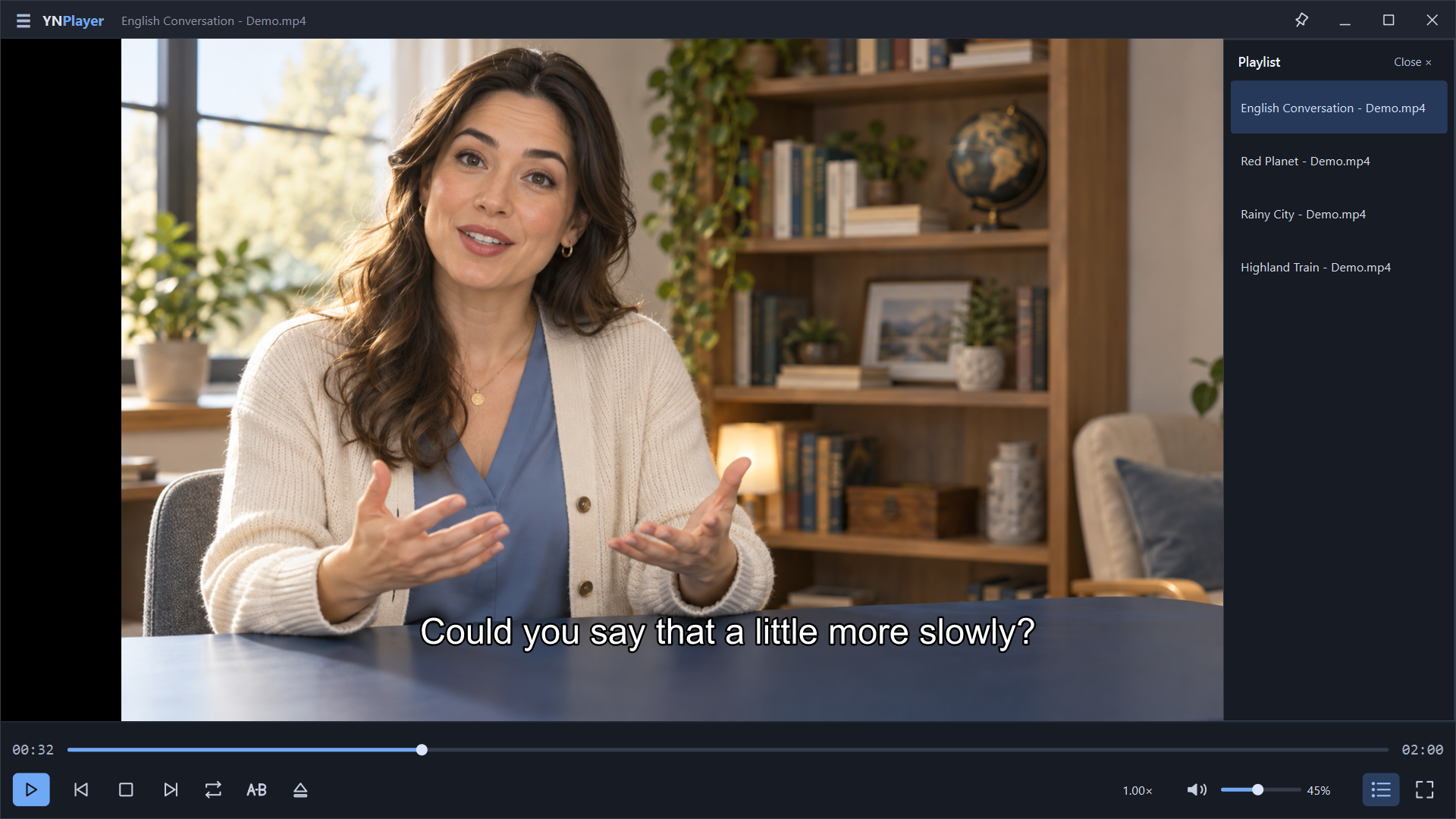
Step 1 opens the file list on the right. Double-click an item as described in step 2. This capture shows the playlist; the repeat and shuffle menus are not open.
Windows capture · demo media.- Press Ctrl+L to show the playlist, then Ctrl+Shift+A to add videos or music.
- Double-click an item to play it and drag to reorder. Select several items with Ctrl/Shift and press Delete to remove them from the list.
- Click the regular repeat button to cycle Off → Repeat all → Repeat one.
- Choose ☰ → Playback → Shuffle. Under Preferences → Playback, choose whether to play the next file automatically when the current one ends.
Removing entries does not delete original files. Removing the playing entry stops playback; use Play to start a remaining entry. The last playlist and selected item are saved and restored automatically. Press Play after restarting.
Open subtitles and adjust appearance or sync
 View larger ↗
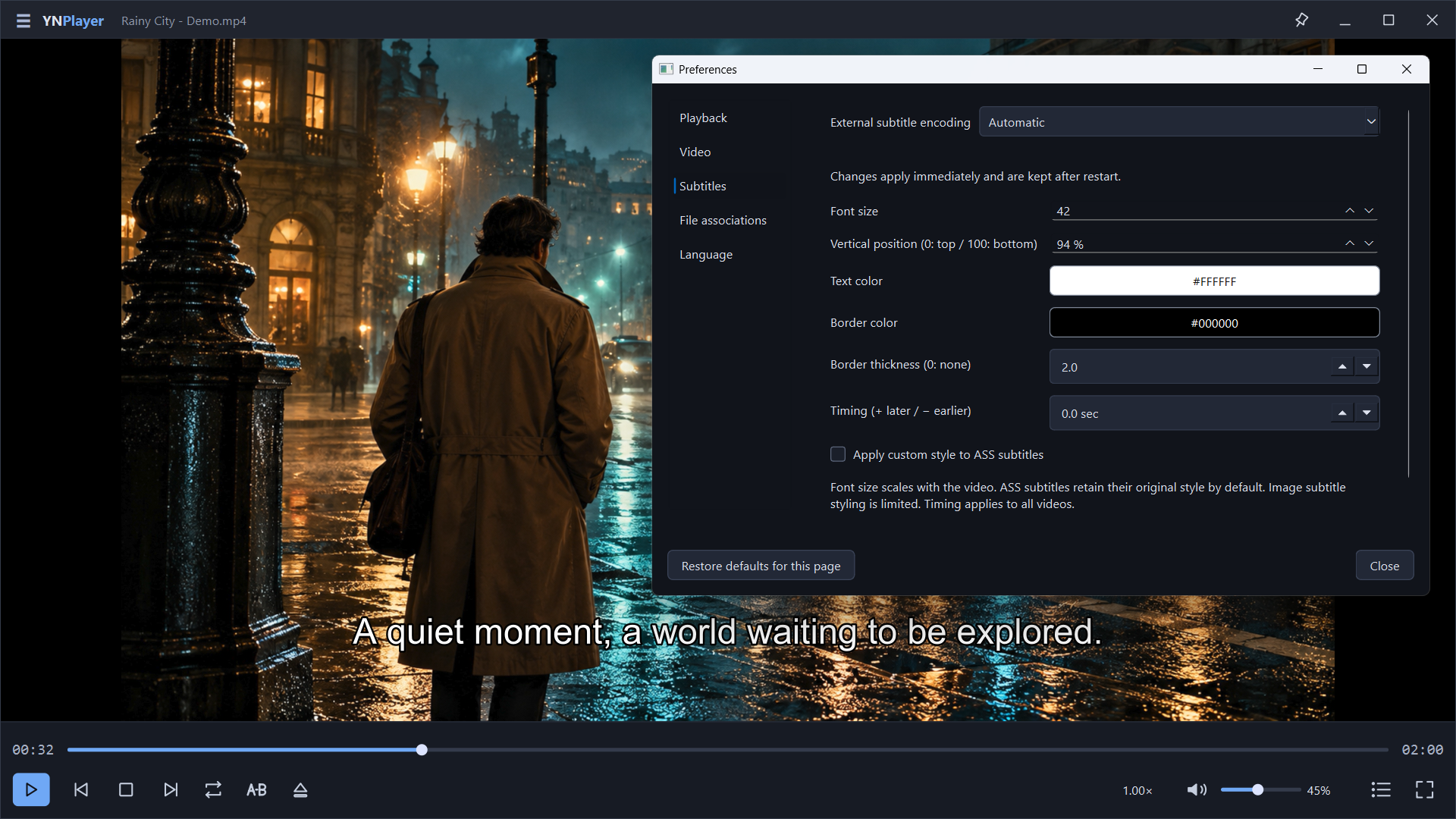
Subtitles is selected on the left. For steps 3–4, adjust Font size, Vertical position and Timing on the right. Positive sync plays subtitles later; negative sync plays them earlier.
Windows capture · demo media.- Open a video, then press Ctrl+Shift+O to select external subtitles. Nearby subtitles are searched automatically; open the desired file manually if it is not selected.
- Under ☰ → Subtitles, choose an embedded or external track, or turn subtitles off.
- Open Subtitles → Subtitle settings… or Ctrl+, → Subtitles to adjust size, vertical position, text color and outline.
- Positive sync values show subtitles later; negative values show them earlier. Adjust by 0.1 seconds in the Subtitles menu, or reset sync to zero.
Subtitle sync is saved and shared with other videos. Reset it if the next video is out of sync. ASS keeps its original style by default; image-based subtitles have limited styling. For garbled Korean text, compare Auto, Korean (CP949) and UTF-8 external-subtitle encoding.
Adjust playback speed for lectures or dialogue
 View larger ↗
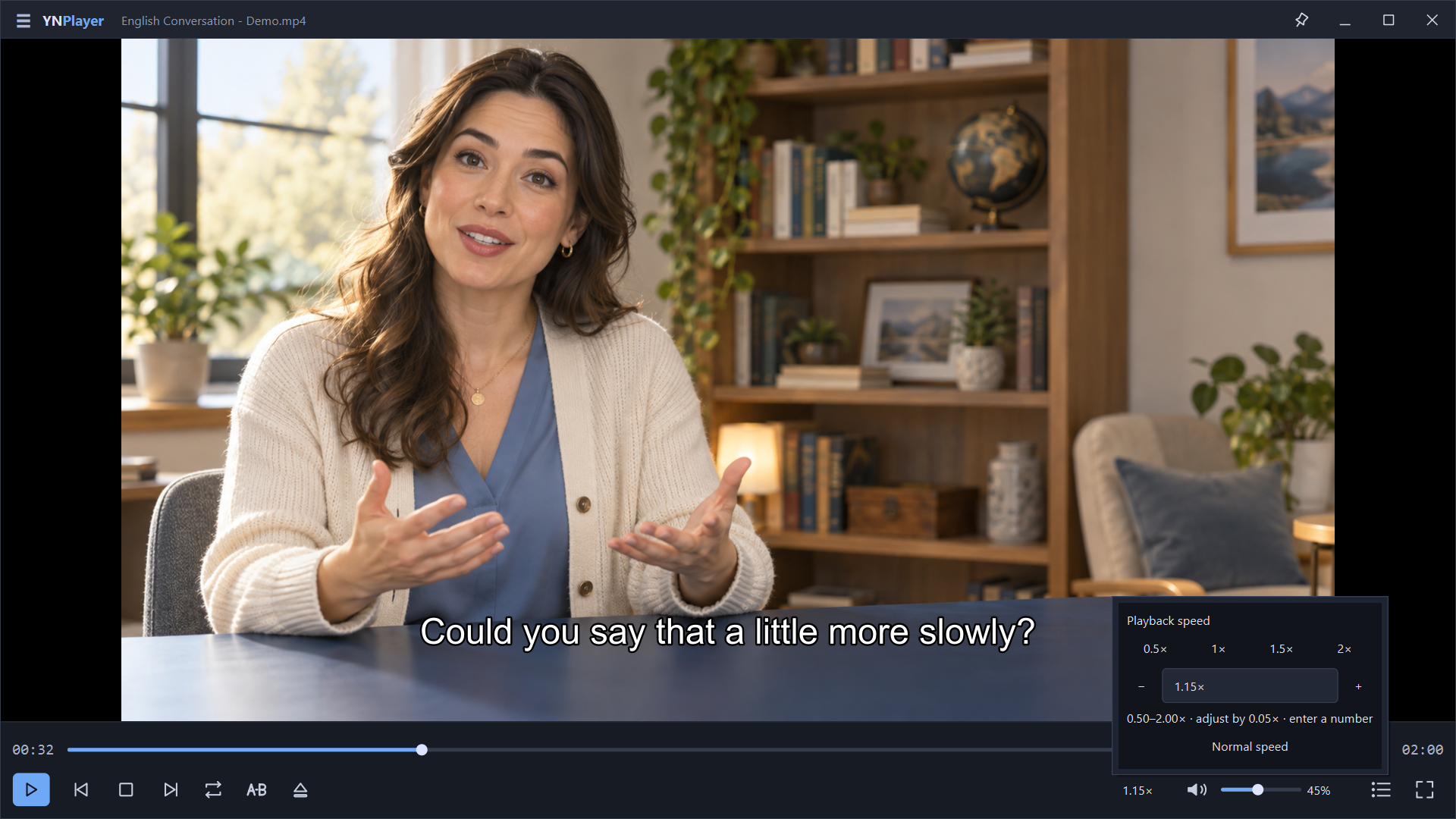
The indicator in step 1 is near the lower right, just left of the volume icon. Use a speed button or the number field in the open menu. The displayed 1.15× is an example.
Windows capture · demo media.- Click the speed value on the bottom bar, such as 1.00×, to open the speed panel.
- Choose the 0.5, 1, 1.5 or 2× preset, or use −/+ to adjust by 0.05×.
- To enter a value directly, type a number between 0.50 and 2.00, then press Enter or move focus outside the input.
- Choose Normal speed to return to 1× playback.
The same speed controls work for music. Frame stepping is available only for video.
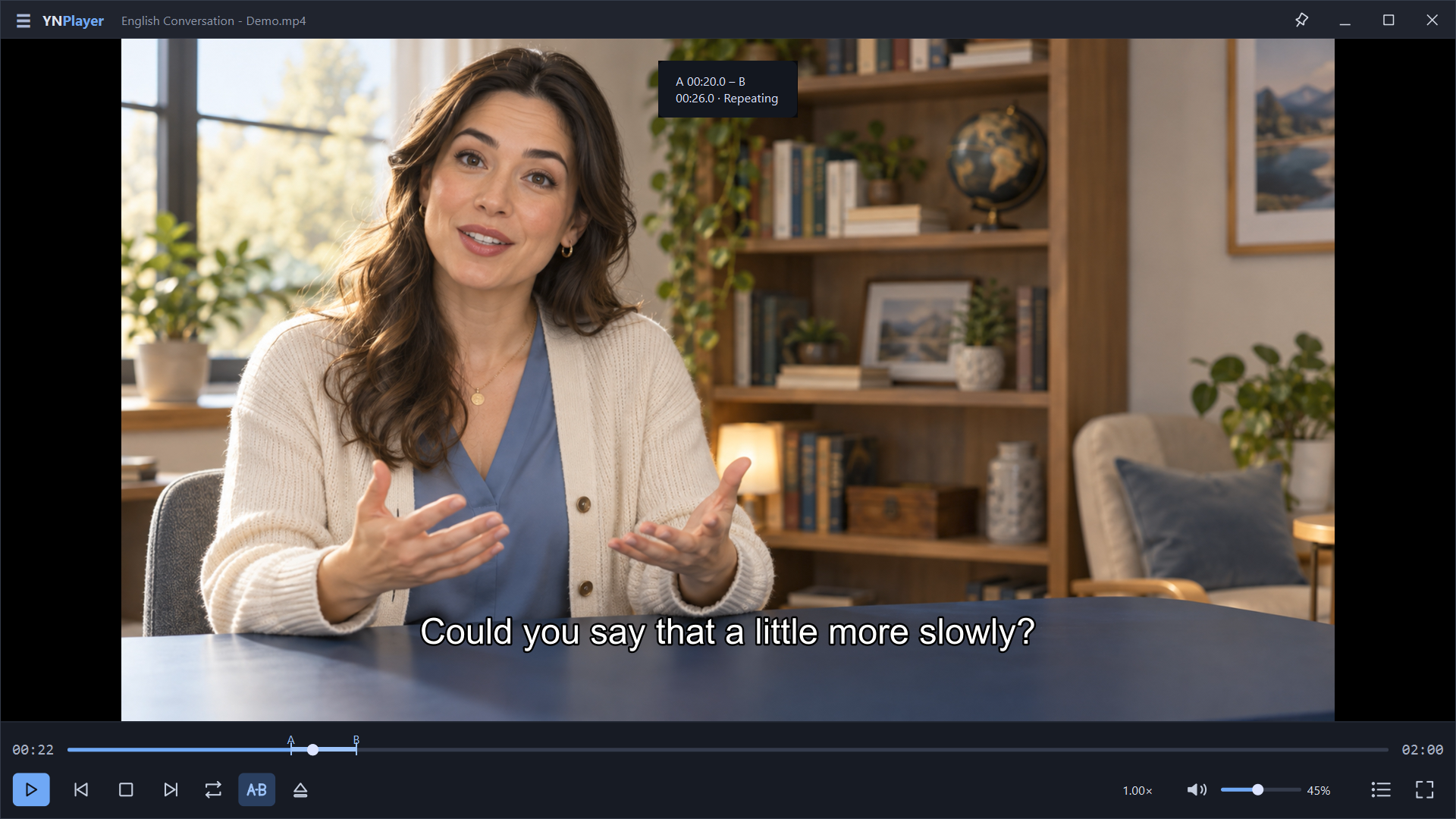
Repeat a passage with A–B repeat
Included in Ubuntu 1.0.5. On Windows, follow these steps only if the installed version provides the A–B menu.
 View larger ↗
The learning example repeats between A and B. Find both markers and the highlighted range on the seek bar.
Windows capture · demo media.- Seek to the beginning of the passage and press [ to set start point A.
- Seek to the end and press ] to set point B. B must be at least 0.1 seconds after A; playback returns to A and repeats.
- Use the A–B icon or B to open the menu. Press \ or Ctrl+\ to turn looping off or on while keeping both points.
- For a new segment, clear it with Ctrl+Shift+\ and set the points again. Use [ / ] to edit an existing point individually.
Changing files, stopping, reaching the end or a playback error clears the segment. Points are not restored after restarting. A–B repeat takes priority over regular repeat; disabling it keeps your previous regular-repeat setting.
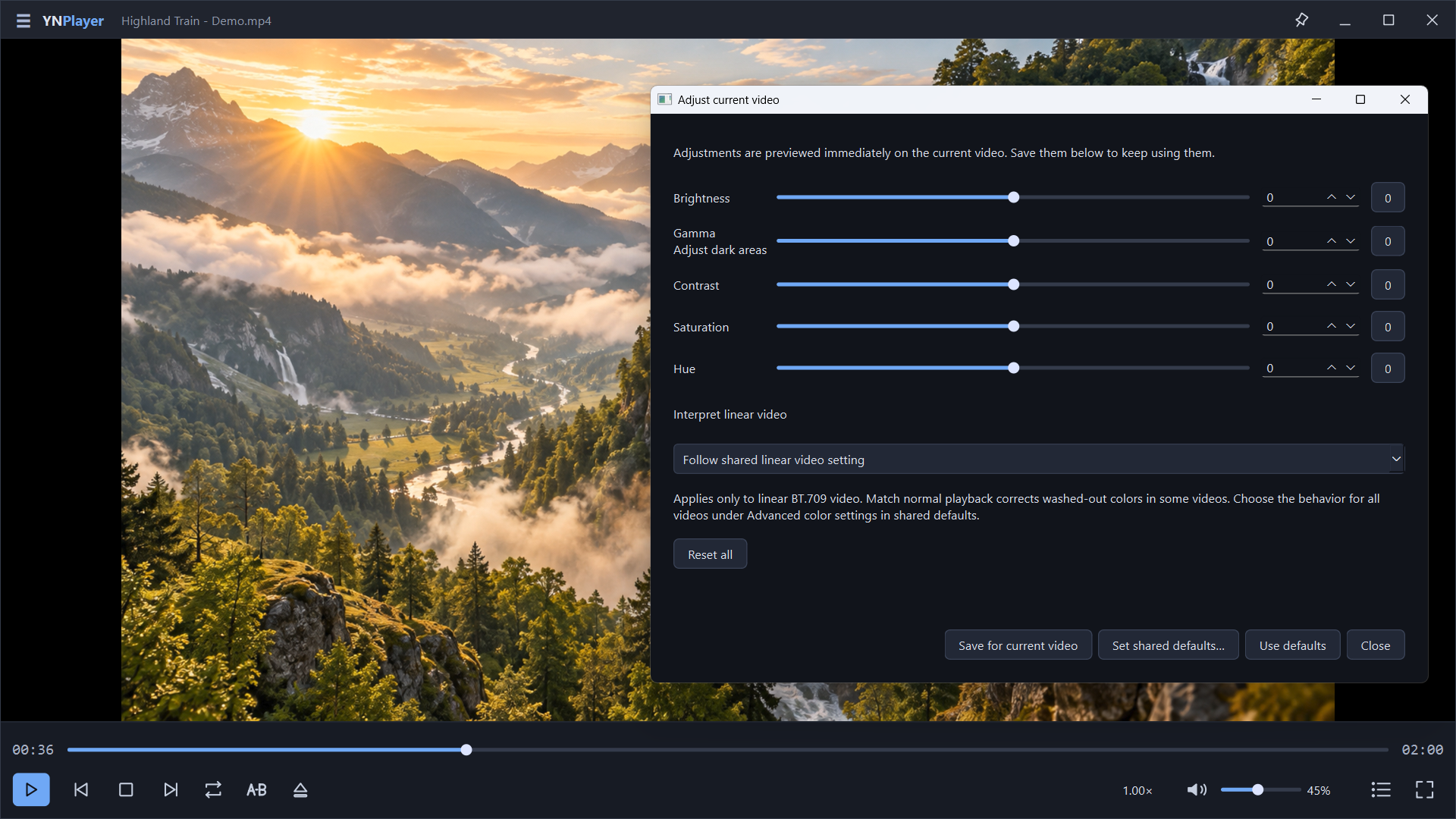
Adjust brightness and color for the current video
 View larger ↗
Preview brightness, gamma, contrast, saturation and hue adjustments here.
Windows capture · demo media.- With a video open, press Ctrl+E or choose ☰ → View → Adjust current video….
- Change brightness, gamma, contrast, saturation and hue while watching the result. Changes preview immediately on the current video.
- Choose Save for current video to retain the values when opening it again. Previewing alone does not save per-file settings.
- Use Set shared defaults… for defaults across videos, or Use defaults to remove the current video’s individual settings.
Adjustments affect playback without changing the original video file or monitor settings. Adjustments in an additional playback window are temporary; per-file saving is provided in the main window.
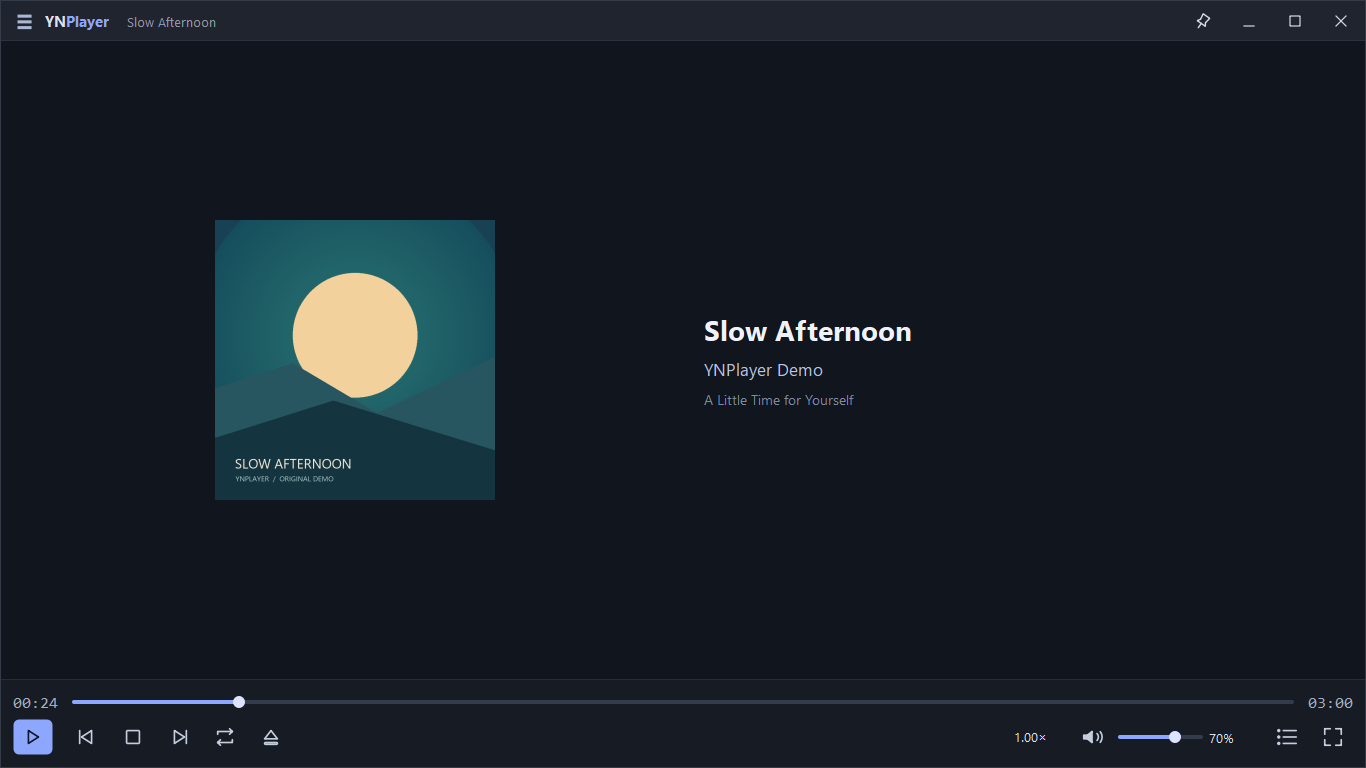
Enjoy music and videos in one playlist
 View larger ↗
This is the view after opening a music file in step 1. Embedded album art and track details appear in the center, with the same playback controls used for video along the bottom.
Windows capture · demo media.- Open local music such as MP3, FLAC, WAV or M4A.
- Check the cover, title, artist and album on the music screen. Missing covers use a default display; missing title tags use the filename.
- Use Ctrl+Shift+A to add more music or videos, then choose repeat or shuffle.
- Use Previous/Next or double-click a playlist entry to switch files. The display switches automatically for video or music.
Covers and track information come from the file’s embedded data and are not searched online. The music screen keeps the controls visible. After more than five seconds of playback, Previous first returns to the beginning of the current item.
Save the current video scene as PNG
- Seek to the scene you want. To choose a precise frame, pause and step with comma/period.
- Press Ctrl+S or choose ☰ → File → Save screenshot….
- Choose a PNG filename and location. The image is captured before the save dialog opens, so it keeps the selected scene even if playback continues while you choose a location.
- To paste into another app, use Ctrl+Shift+C or Copy screenshot.
Captures include the video area, subtitles, picture adjustments and margins, but exclude player buttons and the playlist. Capture is unavailable for music-only playback or when the video track is disabled. PNG captures do not preserve the source’s HDR metadata.
Settings and operating systems
Update checks and playback diagnostics
Ubuntu 24.04 amd64 1.0.22-1 provides Help → User guide and About with the installed version. While the app is running, quiet weekly update checks are enabled by default; an Update button appears in the header when a newer version is available. You can disable weekly automatic checks in Preferences and still use Help → Check for updates. Nothing is downloaded, installed or restarted automatically. Older releases and Windows Store installations follow their installed version’s behavior. GPU/CPU diagnostics depend on the PC environment.
Resume and automatic next playback
Under Ctrl+, → Playback → When opening a file, choose Play from beginning (default) or Resume from last position. Clear saved playback positions removes positions for all files while keeping per-video adjustments. Play next video when playback ends controls automatic advance; Repeat one takes priority.
External file opening and language
Under Preferences → Playback, choose the existing window or a new window for files opened from a file manager or command line. Adding other videos from the same folder when opening one video externally is enabled by default. It does not apply to Ctrl+O, drops or multiple-file selections. Additional windows do not save shared settings or history. Changes under Preferences → Language take effect after restarting.
Default apps on Windows and Ubuntu
Windows manages file-type registration for Microsoft Store installations. Under Preferences → File associations, open Windows default-app settings and select YNPlayer for the required formats. On Ubuntu, choose it for Video/Music in Default Apps, or use file right-click → Properties → Open With → YNPlayer → Set as default. Installation alone does not change your default app.
Audio output, decoding and color
Preferences → Playback → Audio output changes this player’s device only. Under Preferences → Video, Auto hardware decoding attempts supported acceleration and falls back to CPU when necessary. Software disables hardware decoding. Automatic (recommended) color processing is an SDR playback compatibility mode; it does not guarantee native HDR output. Color-processing changes take effect after restarting. Treat default Ubuntu 24.04 GNOME playback as SDR.
Keyboard shortcuts
↑ Back to contentsThese shortcuts apply to the playback window. A focused input or dialog may take precedence. A–B shortcuts require an installed version that provides the feature.
| Shortcut | Action |
|---|---|
| Ctrl+O | Open files |
| Ctrl+Shift+A | Add files to the current playlist |
| Ctrl+Shift+O | Open external subtitles |
| Space | Play / pause |
| ← / → | Seek backward / forward five seconds |
| , / . | Previous / next frame, then pause |
| ↑ / ↓ | Increase / decrease volume by 5% |
| M | Toggle mute |
| Enter | Toggle fullscreen |
| Esc | Close an open playlist; otherwise exit fullscreen |
| Ctrl+L | Show / hide playlist |
| Delete | Remove selected entries while the playlist has focus |
| [ / ] | Set A–B start / end |
| B | Open the A–B menu |
| \ / Ctrl+\ | Toggle A–B looping while keeping points |
| Ctrl+Shift+\ | Clear the A–B segment |
| Ctrl+E | Current video adjustments |
| Ctrl+I | Playback information |
| Ctrl+S | Save current video as PNG |
| Ctrl+Shift+C | Copy current video to clipboard |
| Ctrl+, | Preferences |
Troubleshooting
↑ Back to contentsSubtitles are missing or Korean text is garbled.
Check that a video is open and add the subtitle manually with Ctrl+Shift+O. Select the desired track in Subtitles and make sure subtitles are not turned off. For garbled text, compare Auto, Korean (CP949) and UTF-8 encoding. Appearance settings may not fully apply to original ASS styles or image-based subtitles.
Subtitles are early or late even in another video.
Subtitle sync is saved as a shared setting rather than per video. Choose ☰ → Subtitles → Reset subtitle timing to return to zero, then adjust as needed. Positive values show subtitles later; negative values show them earlier.
There is no sound, or playback stutters.
Check mute with M, increase volume and select an audio track from the Audio menu. Compare Auto or another device under Preferences → Playback → Audio output. For stuttering video, compare Auto and Software decoding under Preferences → Video, and check actual decoding and dropped frames with Ctrl+I. Support depends on the codec and device.
The playlist changed, or it looks as if a file was deleted.
Ctrl+O and dropping media replace the current playlist. Use Ctrl+Shift+A to keep it and append files. Delete in the playlist does not delete original files. If an original file was moved or deleted, its stored path no longer opens; add it again from the new location.
There is no A–B menu, or looping does not start.
Ubuntu 1.0.5 includes the feature. If the menu is missing, update your installed app through Microsoft Store. If the menu exists, open a file, set A first, and set B at least 0.1 seconds later. If looping is off but points remain, turn it on with \. After changing files or stopping, set the points again.
The Ubuntu package does not install, or a file will not open.
The website DEB is for Ubuntu 24.04 amd64, not ARM64. In the download folder, use sudo apt install ./YNPlayer-1.0.22-1-ubuntu-amd64.deb to install dependencies too. Match the command to the actual filename if it differs. If the app opens, use Ctrl+O to check that the local file exists and is readable. Choose double-click associations separately in file properties or Default Apps.
Picture adjustments or language do not carry over.
Current video adjustments are previews; choose Save for current video to keep them. Use Set shared defaults… for defaults across videos. Additional playback windows do not save shared settings or per-file history. Language and color-processing changes require fully closing and restarting the app.
If the problem remains, include your installed app version, Windows/Ubuntu version, file format, error message and steps to reproduce it. You do not need to send private video or music files. Send feedback
Supported versions and formats
Install and update Windows x64 through Microsoft Store. The website’s Ubuntu download is YNPlayer 1.0.22-1 for Ubuntu 24.04 amd64. No ARM64 package is provided. Playback, subtitles and window behavior were checked on a virtual X11 display. Tearing improvement on a physical GPU/monitor and audible output still need confirmation after installation. This download is not an ARM package.
Open local videos such as MP4/MKV and music such as MP3/FLAC/WAV/M4A. Actual codec support and hardware decoding depend on the libmpv/FFmpeg build, GPU and drivers. DRM content and streaming-service integration are unsupported.
Settings, playlists, optional resume positions and per-video adjustments are stored on your PC. Ubuntu uses ~/.local/share/YNPlayer by default, or your XDG_DATA_HOME location. Per-file position and adjustment history keeps up to 100 recently used files.
Downloads