About the screenshots and demo media +
Screenshots show actual app UI. New Windows screenshots use AI-generated nature, cinematic and learning samples, original subtitles and design variants. The existing music and file-information examples are retained. Torrent tasks and figures are isolated demo data, not speed benchmarks. The interactive comparison is a separate web demo; Ubuntu layouts may differ.
Install and launch
Windows · x64
- Choose Install from Microsoft Store on the Downloads page. It opens the Store webpage.
- Install from Store, then find the app in the Windows Start menu. Store also supplies updates. The Ubuntu DEB on this website is not a Windows installer.
Ubuntu 24.04 · x64
- Download the DEB for Ubuntu 24.04 x64. It will usually be saved in your Downloads folder.
- Open the DEB with a software installer, or open a terminal in the folder containing it and run the command below. apt handles the package dependencies.
- After installation, find the app in your applications menu. Choose default file associations in your operating system settings.
sudo apt install ./YNView-1.0.12-ubuntu-amd64.debThe command uses the filename currently offered on this website. If the DEB is in another folder, change to that folder first. Installation may require administrator authentication.
Current downloads: Windows (Microsoft Store) v1.0.18.0 · Ubuntu 24.04 x64 v1.0.12. Ubuntu 1.0.12 includes shared YN accent colors, improved dark-mode contrast, a stable comparison toolbar and a tidier image information panel. Existing captures show earlier Windows UI. Check Windows Store availability separately.
Choose a downloadOpen your first file
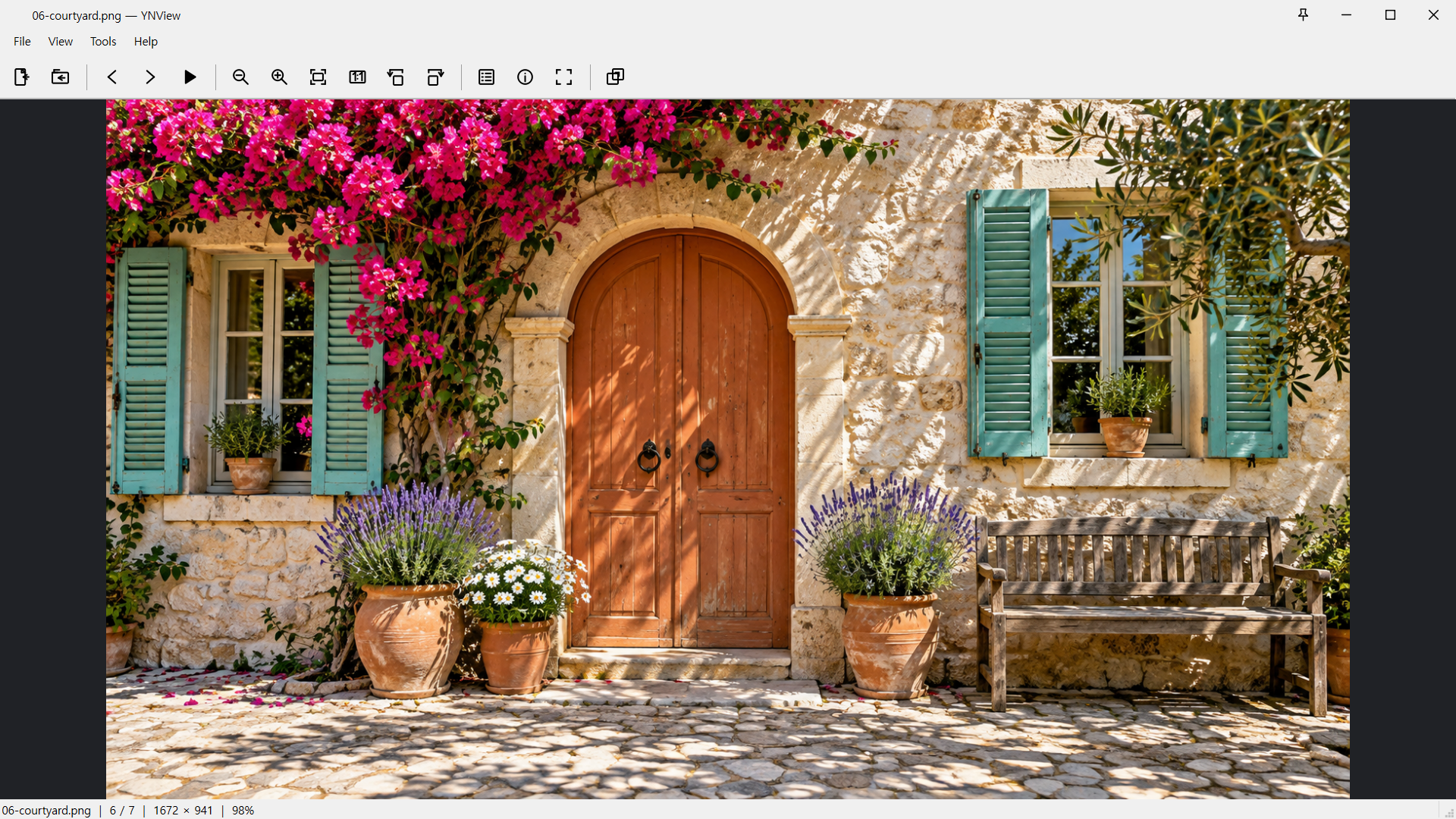 View larger ↗
An opened photo appears in the center. Follow the steps below to open a file or folder and press F to fit the image to the window.
Windows capture · demo media.- Launch YNView and choose File → Open file, or press Ctrl+O.
- Select a supported image such as JPEG or PNG. You can also drop a file or folder into the window.
- To browse several photos, choose File → Open folder or press Ctrl+Shift+O and select their folder.
- Click the image area, use ← / → for the previous or next photo, and press F to fit it to the window.
The folder list includes supported images directly inside that folder, without subfolders. When you drop several files or folders, only the first item opens.
Hover over toolbar buttons to see their functions and shortcuts. In a narrow window, use the extension button on the right for remaining commands.
In Ubuntu 1.0.10, hover over any edge or corner of a normal window to see a directional resize cursor. Drag that area to resize the window.
Step-by-step tasks
Keep photo A fixed and compare it with B
 View larger ↗
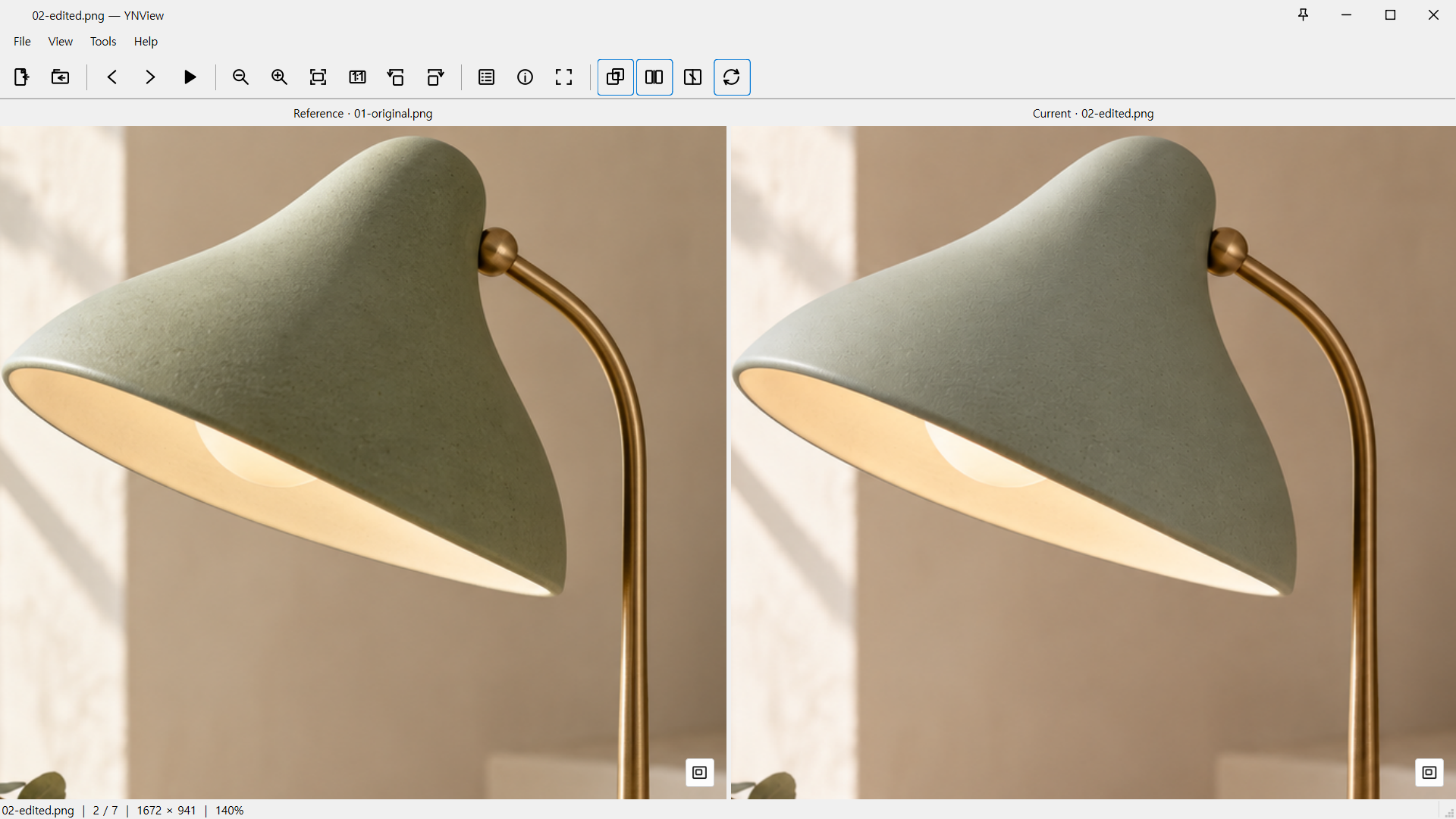
This is the result of steps 2–3. Check the Reference and Current file names above the photos. A stays fixed while the current folder list or → changes B on the right.
Windows capture · demo media.- Place both photos in the same folder and open photo A first.
- Choose View → Compare two images or press Ctrl+Shift+C. Both panes initially display A.
- Show the Browse panel with Ctrl+B and select B, or press → to move to the next photo. The reference A stays fixed on the left; only the current image on the right changes.
- Keep zoom and pan synchronization enabled in side-by-side view to inspect corresponding areas together.
- Press Ctrl+Shift+C again to stop comparing.
Opening a new file or folder exits comparison. Select B through the current folder list or previous/next navigation. During comparison, the information panel describes the current image.
Inspect differences with the slider
 View larger ↗
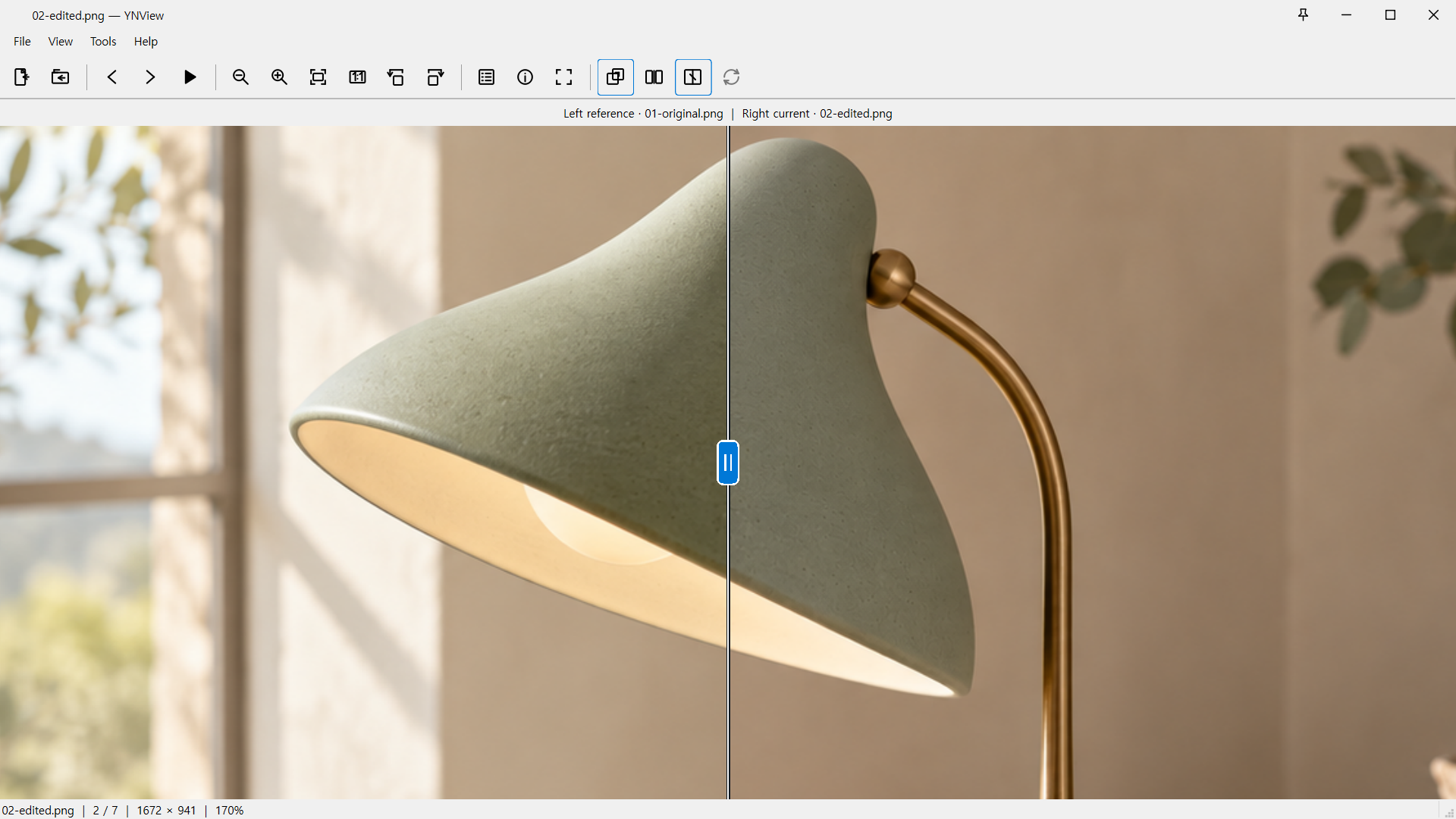
This is slider comparison after step 2. In step 3, drag the handle on the vertical divider left or right. The app compares the photos; it does not retouch them.
Windows capture · demo media.- Start comparison as above and select two different photos.
- Click Slider comparison in the toolbar or press Ctrl+Shift+W.
- Drag the vertical divider or handle left and right to reveal the reference on the left and current image on the right.
- Scroll to zoom or drag the image to pan. Double-click the divider to center it.
- Press Ctrl+Shift+W again to return to side-by-side view.
Zoom and pan always affect both images in slider view, and the minimap is unavailable. Different image sizes keep their original proportions and centers, so empty areas can appear. Images are not automatically aligned or stretched.
Zoom and navigate with the minimap
 View larger ↗
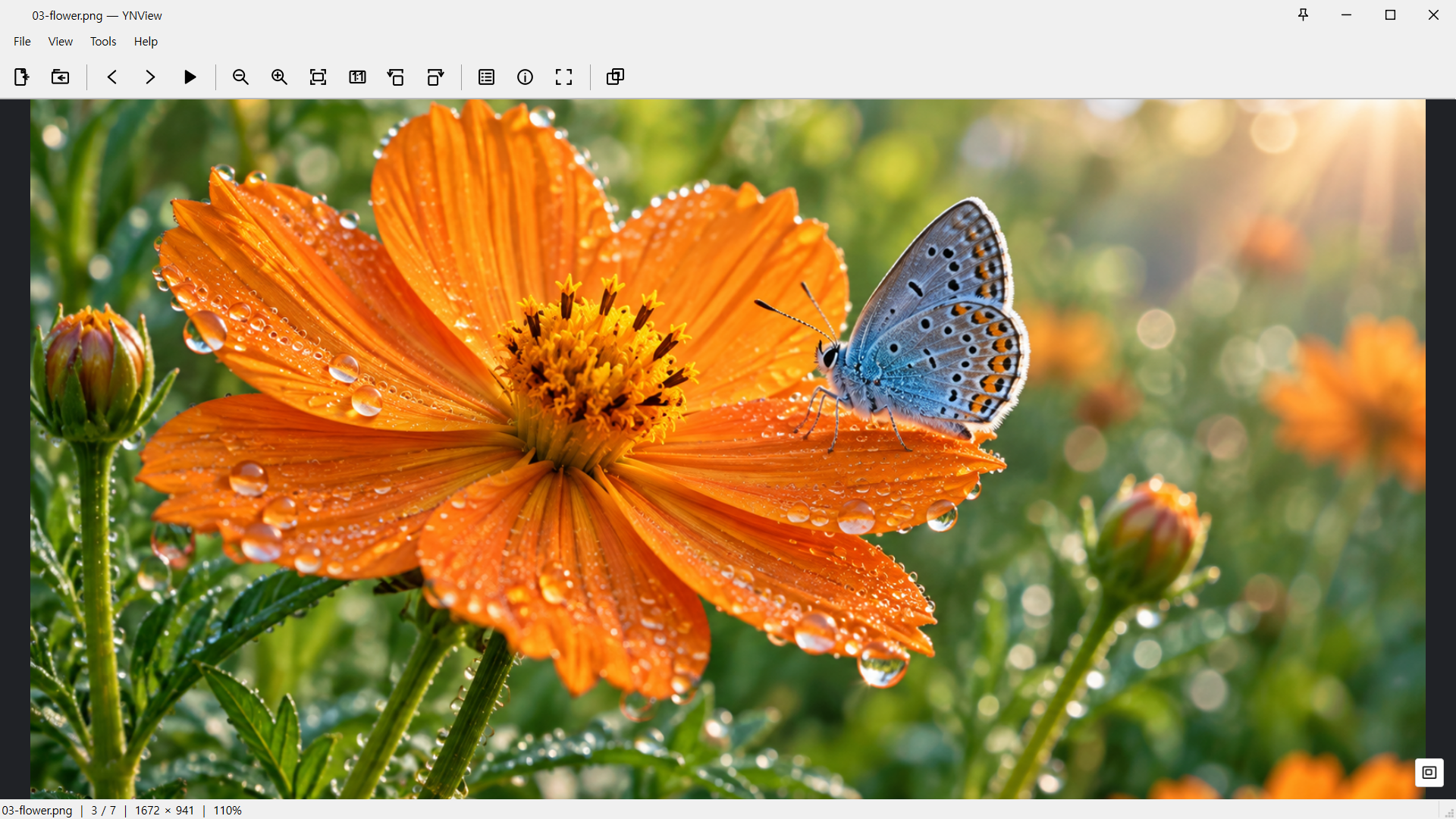
Inspect fine textures and use the lower-right minimap to stay oriented.
Windows capture · demo media.- Point at a detail and scroll to zoom around it. The + / − keys zoom around the center of the view.
- Drag the photo with the left mouse button to pan.
- When part of the photo extends beyond the view, click the overview button at the lower right to expand the minimap.
- Click or drag within the minimap to move elsewhere. Press F to fit the image or 1 for a physical pixel-to-pixel view.
Turn off smooth scaling under Tools → Settings → Display to inspect pixel edges. Touchpad pinch works where the operating system and driver deliver supported native gestures to Qt.
Rotate the view left or right
The left rotation button and Shift+R are available in Ubuntu 1.0.4 and Windows versions with that menu. In an older Windows version, repeat R to reach the direction you want.
- In the large image view, click Rotate right 90° or press R.
- If your version has Rotate left 90°, click it or press Shift+R. Otherwise, press R three times for the same orientation as a 90° left turn.
- Press F if you want to fit the rotated photo to the window.
Rotation changes the view without saving or overwriting the original image content. View rotation resets for a new photo. Toolbar rotation affects the current right-hand image in side-by-side view and both images in slider view.
Read file details and photo metadata
 View larger ↗
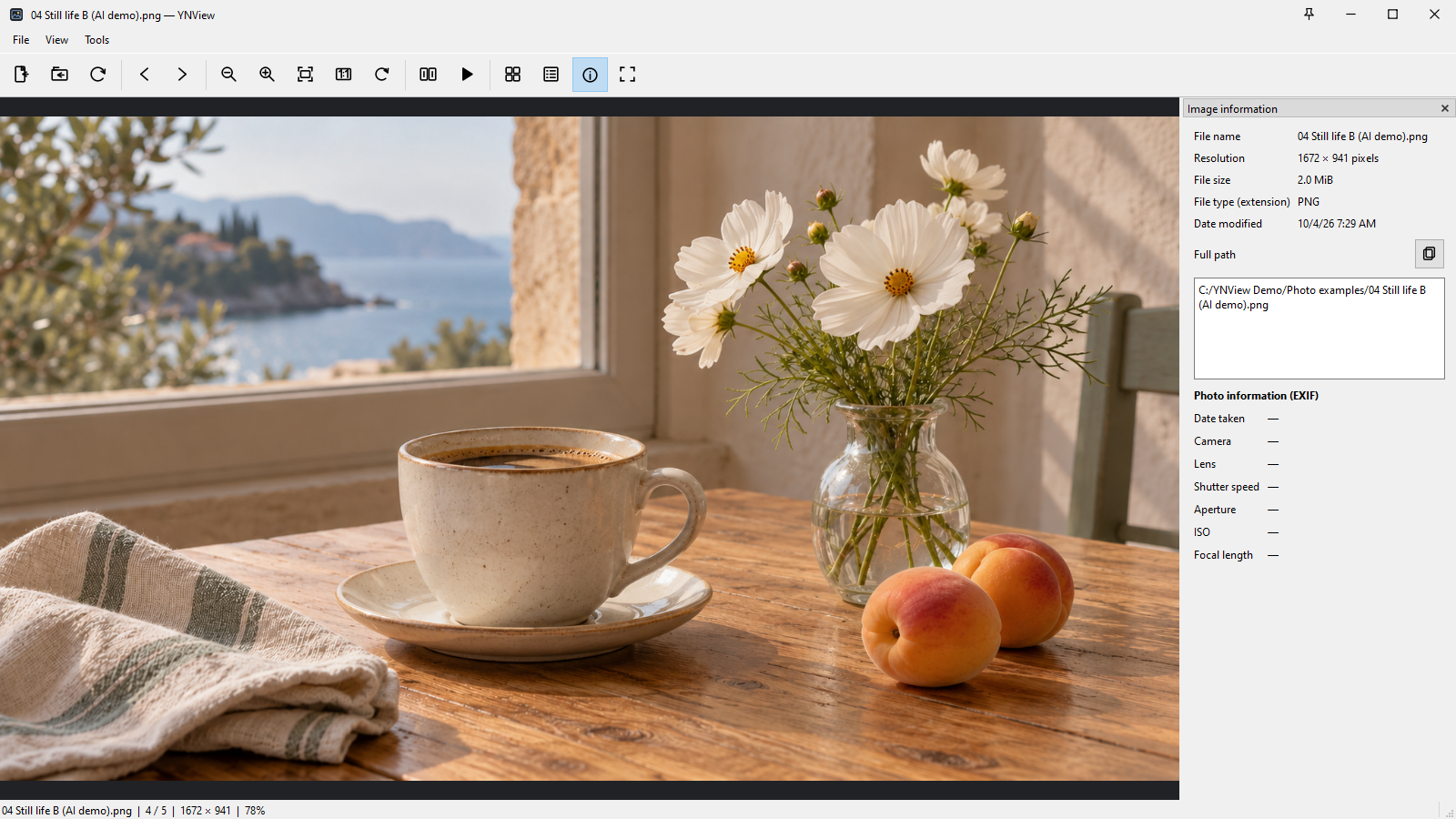
The Image information button in step 1 is the circled i in the top toolbar. Read dimensions, size and format at the top right; use the button beside Full path to copy it. This demo photo’s capture metadata shows —.
Windows capture · demo media. This demo photo has no camera EXIF; the panel demonstrates file information.- Open a photo and choose View → Image information or press Ctrl+I.
- Check the file name, full path, dimensions, file size, format and modified date. Use the path copy button to copy the full path.
- Under Photo information (EXIF), read embedded capture time, camera, lens, shutter speed, aperture, ISO and focal length.
- Press Ctrl+I again to hide the panel.
EXIF is read from JPEG, PNG and WebP. — means a field is absent or unreadable; the modified date is not substituted for capture time. AVIF/HEIC/HEIF EXIF is not currently extracted. The AI-generated demo photos on this website have no real capture metadata.
Search, sort and choose a photo
In 1.0.4, previous/next, Home/End and the slideshow navigate within the current search results. Version 1.0.5 uses the Browse panel instead of the grid.
 View larger ↗
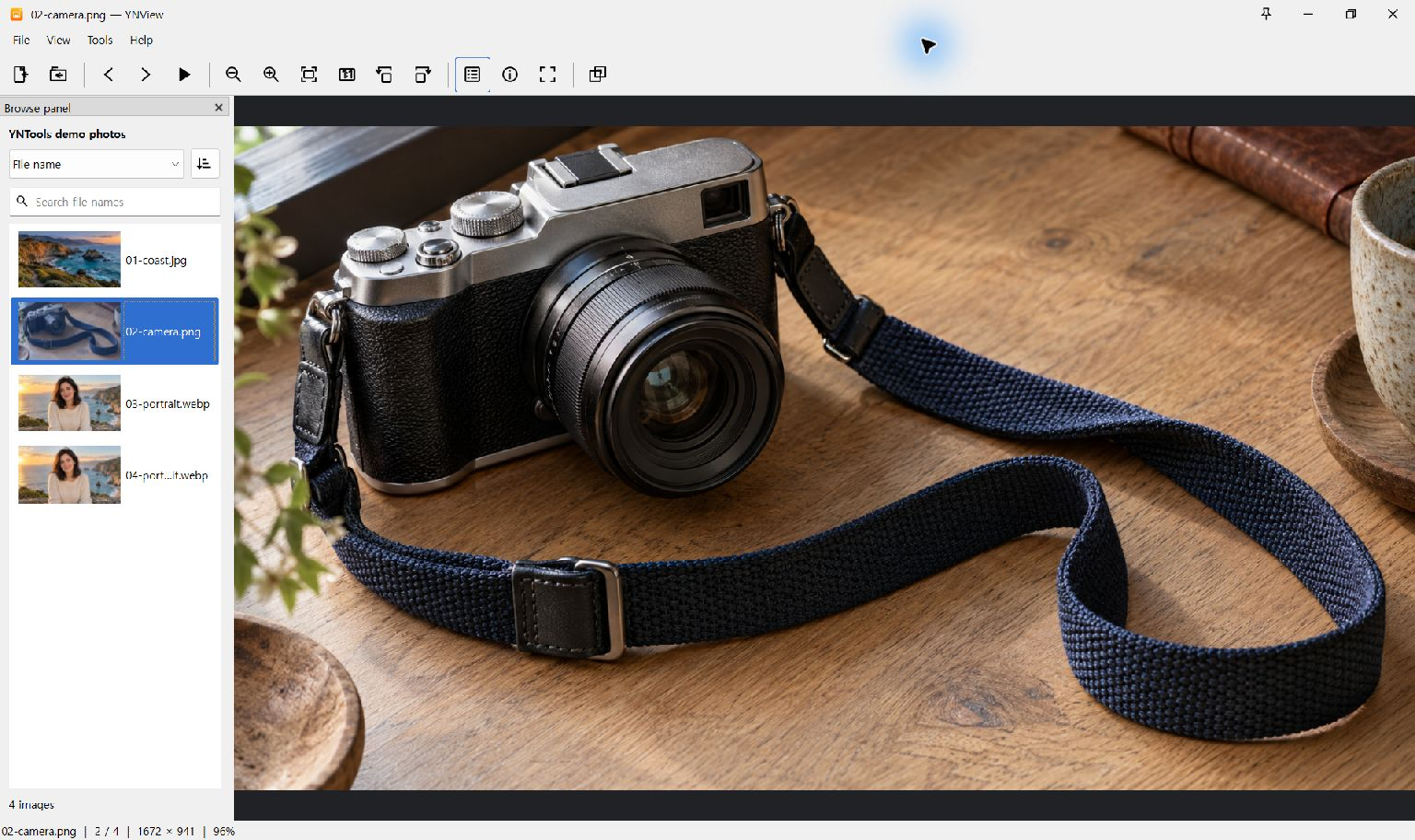
For steps 1–2, use the sort selector and file-name search near the top of the left panel, then choose a thumbnail below. This Windows screenshot shows the Browse list; Ubuntu layouts may differ.
Windows capture · demo media.- Open a folder and show the Browse panel with Ctrl+B. Choose file name, modified date or file size and a sort direction.
- Press Ctrl+L and enter part of a file name to filter the list. Search is case-insensitive.
- Clear the search to return to the whole folder. Press F5 to rescan added or removed files.
Typing a search keeps the current photo visible. If it is outside the results, Next opens the first result and Previous opens the last. With no results, navigation and the slideshow are unavailable. Changing the search stops playback.
Watch a slideshow in full screen
- Open a folder and choose a 1, 3, 5 or 10-second interval and repeat behavior under View → Slideshow.
- Press Ctrl+Space to start or pause playback.
- Press F11 for full screen. Move the pointer to the bottom or press Tab to reveal the control bar.
- Press Esc to stop the slideshow and exit full screen.
GIF/WebP animations start automatically when opened; Ctrl+Alt+Space pauses or resumes them. The image slideshow advances at its selected interval without waiting for an animation to finish. During comparison, only the current photo changes.
Rename a file or move it to trash
File management commands affect actual files. Permanent deletion cannot be undone.
- Open the photo in the large image view and check its name and path.
- Press F2 or choose File → Rename and enter a new name. The existing extension is preserved.
- To remove the file, press Delete or choose Move to Recycle Bin and read the confirmation.
- Use Shift+Delete only when permanent deletion is intended. Check the file name in the confirmation before proceeding.
If moving to trash fails, check file permissions and the storage location. The app does not automatically switch to permanent deletion. Renaming or deleting exits comparison; after deletion, a remaining photo is shown.
Settings and operating systems
Preview cache and update checks
The application disk preview cache is shared across folders and limited to 256 MiB. Settings offers Clear and Disable. The 256 MiB original RAM cache is separate. A first visit has no disk preview and can wait for the original. Ubuntu 24.04 amd64 1.0.12 provides Help (Alt+H), the official user guide, About with the installed version and immediate manual update checks. Quiet weekly checks run only while the app is open and show a small Update button. Disable them in Settings. There are no automatic popups, downloads, installations or restarts. Older installed releases retain their existing behavior.
Open and save settings
Use Tools → Settings or Ctrl+,. General includes language, reopening the last folder, default sorting and trash confirmation. Language changes apply after restarting. Apply saves settings; OK saves and closes. Cancel discards only changes that have not already been applied. Restore defaults also requires OK or Apply.
Display and Navigation / Compare
Display controls background color, Browse panel thumbnail sizes, panels and smooth scaling. Navigation / Compare controls retaining zoom and position for the next image, automatic minimap expansion and comparison synchronization. View rotation resets for a new image even when zoom is retained.
Windows file associations
Windows manages file-type registration for the Store package. Open Windows default app settings from the File associations tab and choose YNView for the image extensions you want. Return to the app and refresh the association status. Opening settings or saving internal preferences alone does not change your default apps.
Ubuntu file associations
Use the File associations tab or File → Set as default image app and confirm changes for your current user. Check the result and details for any failed formats. Missing or unresponsive GIO tools can show no association or an unavailable status. The Ubuntu command and internal DEB package name remain ynsee.
Keyboard shortcuts
↑ Back to contentsFocus the image area when using viewing shortcuts. While editing search/settings fields, arrow keys, Home/End and keys such as F, R and 1 edit text.
| Shortcut | Action |
|---|---|
| Ctrl+O / Ctrl+Shift+O | Open file / folder |
| ← / → · Home / End | Previous/next / first/last image |
| Ctrl+B / Ctrl+L / Ctrl+I | Browse panel / file-name search / image information |
| Ctrl+Shift+C / Ctrl+Shift+W | Start/stop comparison / switch side-by-side and slider |
| Scroll · + / − | Zoom around pointer / center |
| F / 1 | Fit / physical pixel-to-pixel view |
| R / Shift+R | Rotate view right / left 90°. Shift+R requires Ubuntu 1.0.4 or a Windows version with that menu |
| Ctrl+Space / Ctrl+Alt+Space | Play/pause slideshow / animation |
| F11 / Esc | Toggle full screen / stop slideshow and exit full screen |
| F5 / Ctrl+, | Refresh folder / settings |
| F2 / Delete / Shift+Delete | Rename / trash / permanently delete |
| Ctrl+C | Copy displayed image when the image area has focus |
Troubleshooting
↑ Back to contentsBoth comparison panes show the same photo.
This is expected when comparison starts. Keep the reference fixed and select another photo from the same folder list. Opening a new file exits comparison.
Next or the slideshow stops working after a search.
Version 1.0.4 navigates within search results. No results means navigation is disabled. Clear the search or select a result, then click the image area. Changing the search stops the slideshow, so restart it explicitly.
Photo metadata shows —.
The EXIF field is absent or unreadable. Embedded JPEG/PNG/WebP metadata is read; AVIF/HEIC/HEIF EXIF is not extracted. Screenshots, exported photos and AI-generated demos may have no capture metadata.
An image will not open or animate.
Check its supported format and file permissions. Only GIF/WebP animations play; AVIF/HEIC/HEIF display the primary still image. Damaged images or those exceeding the 256 MiB decoding limit may fail. On Ubuntu, use apt so dependencies are installed together.
The minimap or full-screen controls are missing.
The minimap button appears only when the photo extends outside the view and is unavailable in slider comparison. In full screen, move the pointer to the bottom or press Tab for the control bar.
New files or edits do not appear in the folder.
Press F5 and check View → Automatically refresh folder changes. Automatic refresh checks file size and modification time, so edits that preserve both are not detected. Large folders or network locations can take longer to update.
Renaming or moving to trash failed.
Check for an existing file with the same name and write permissions for the file/folder. File names cannot include path separators. A failed trash operation is not replaced with permanent deletion; check the original file location before retrying.
If the issue persists, include the app version, Windows/Ubuntu version, image format, steps and error message. Share private photos or full personal paths only when needed. Send feedback
Supported versions and formats
Supported systems: Windows 11 x64 and Ubuntu 24.04 x64. See the installation section for current download versions. Install Windows through Microsoft Store.
Supported images: JPEG (.jpg, .jpeg), PNG, BMP, GIF, WebP, AVIF and HEIC/HEIF. GIF/WebP animations are supported. RAW/TIFF, AVIF animation, HDR output and tone mapping are not supported.
Zoom, comparison and view rotation do not change the original image content. Rename, trash and permanent deletion apply to actual files selected by the user. Viewing images requires no account.
Downloads