Install and launch
- Install YNPlayer with the Google Play button below. Updates also come from Google Play.
- Launch YNPlayer from your app list. The first screen shows Open video file and the Recent videos and Folder videos tabs.
- The app follows your device language: English, Korean or Japanese.
Open your first file
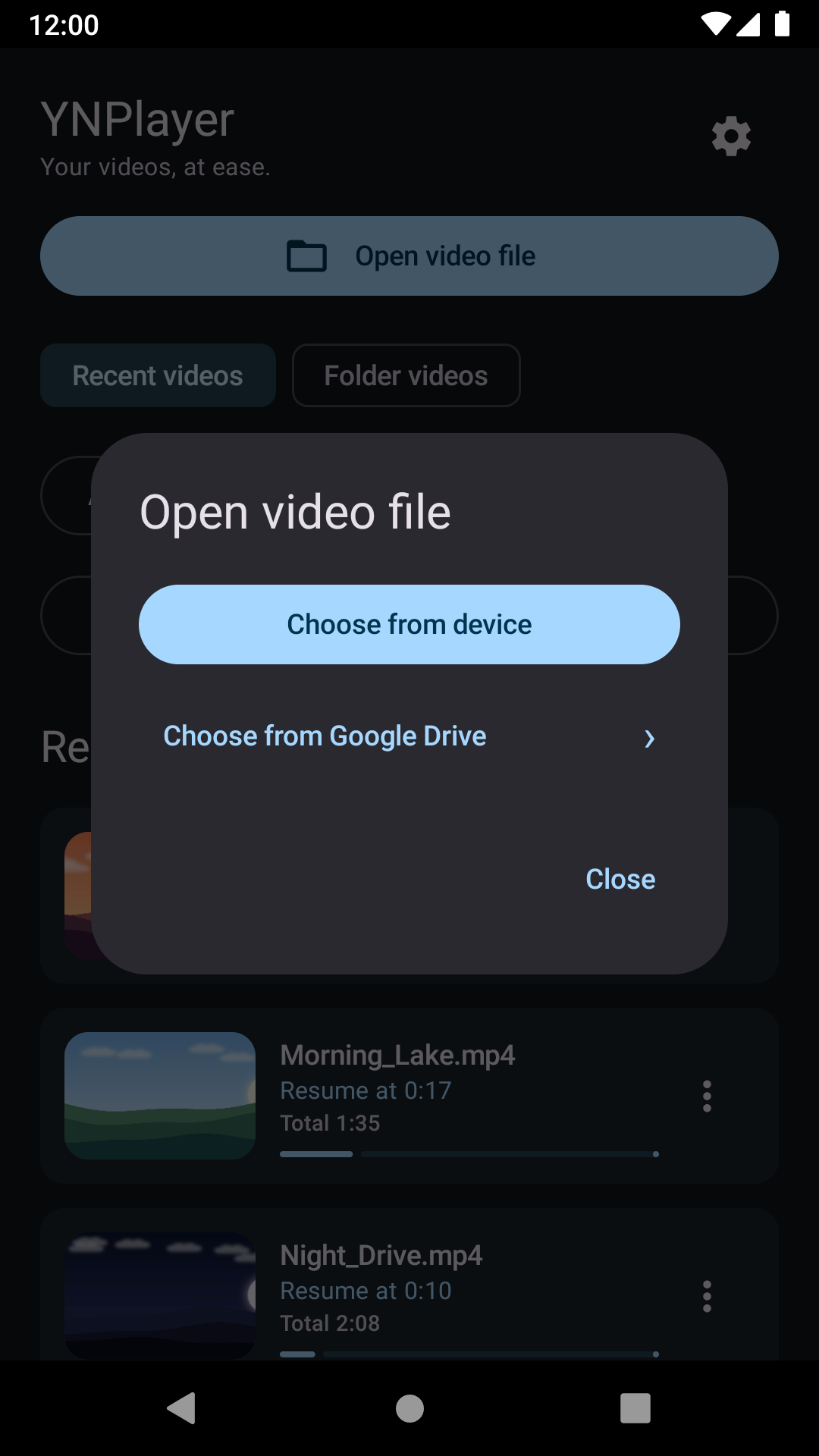
- Tap Open video file on the first screen.
- Tap Choose from device and pick a video in the system file picker. For Google Drive videos, tap Choose from Google Drive.
- Tap the video once to show or hide the controls. Use the centre button to play or pause, and drag the position bar to jump.
- Tap the back arrow at the top left or your device’s Back button to return to the video list. Opening the same video again resumes where you stopped.
You can also open a video in YNPlayer from another app, such as a file manager.
After you pick a file, YNPlayer checks that it is a video. Whether it plays depends on its codecs and your device. Finished videos start again from the beginning.
Step-by-step tasks
Playback, brightness and volume
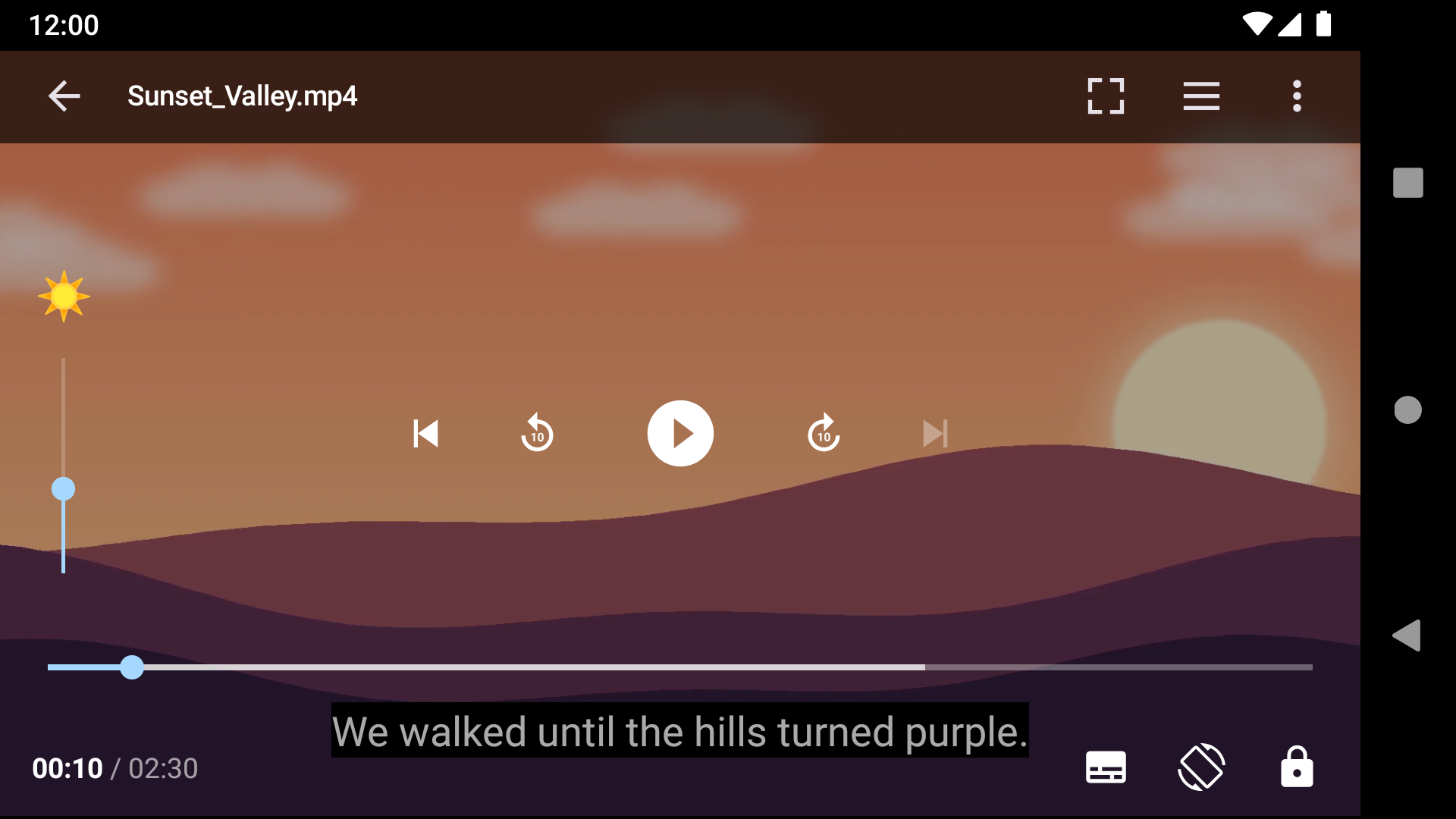
- Double-tap the left or right side to go back or forward 10 seconds. The Back 10 seconds and Forward 10 seconds buttons do the same.
- Drag up or down on the left side for brightness and on the right side for volume.
- Pinch with two fingers to switch between Fit to screen and Zoom to fill.
- Use the Rotate screen button at the bottom to switch between landscape and portrait.
- Tap Lock controls to block touches and seeking. Unlock with the unlock button or your device’s Back button.
While the player is visible, wired and Bluetooth headsets and system media buttons also control playback.
Speed, display and audio
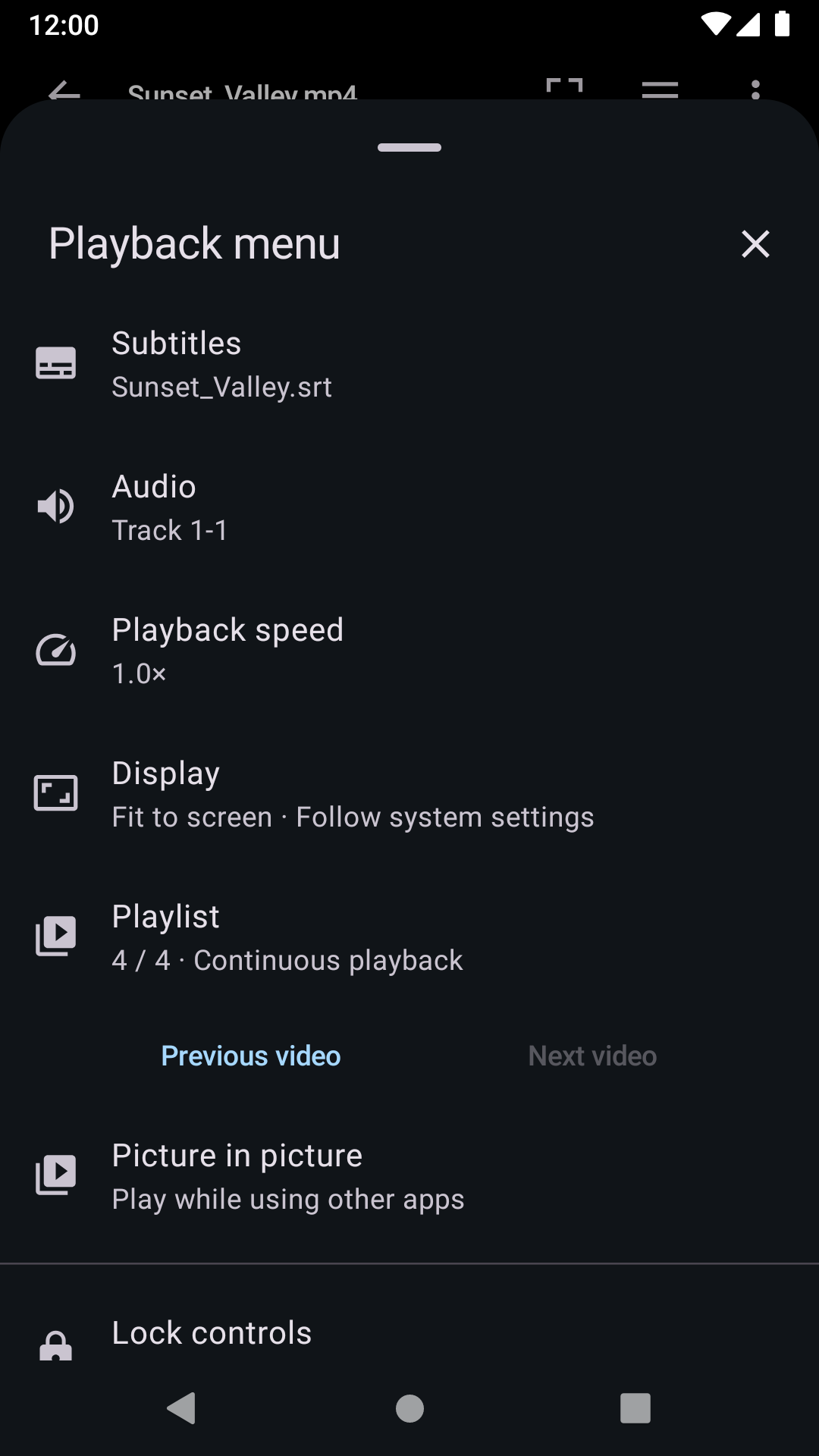
- During playback, tap ⋮ at the top right to open the Playback menu.
- In Playback speed, choose 0.5, 0.75, 1, 1.25, 1.5 or 2×.
- In Display, choose Fit to screen, Zoom to fill or Stretch, and a Screen orientation (Follow system settings, Landscape or Portrait). The screen fit is saved as your default.
- For videos with several audio tracks, choose one in Audio. Track choices are remembered for each video.
Playlist in the Playback menu moves to the previous or next video and switches between Continuous playback and Play one video.
Attach subtitles and fix timing
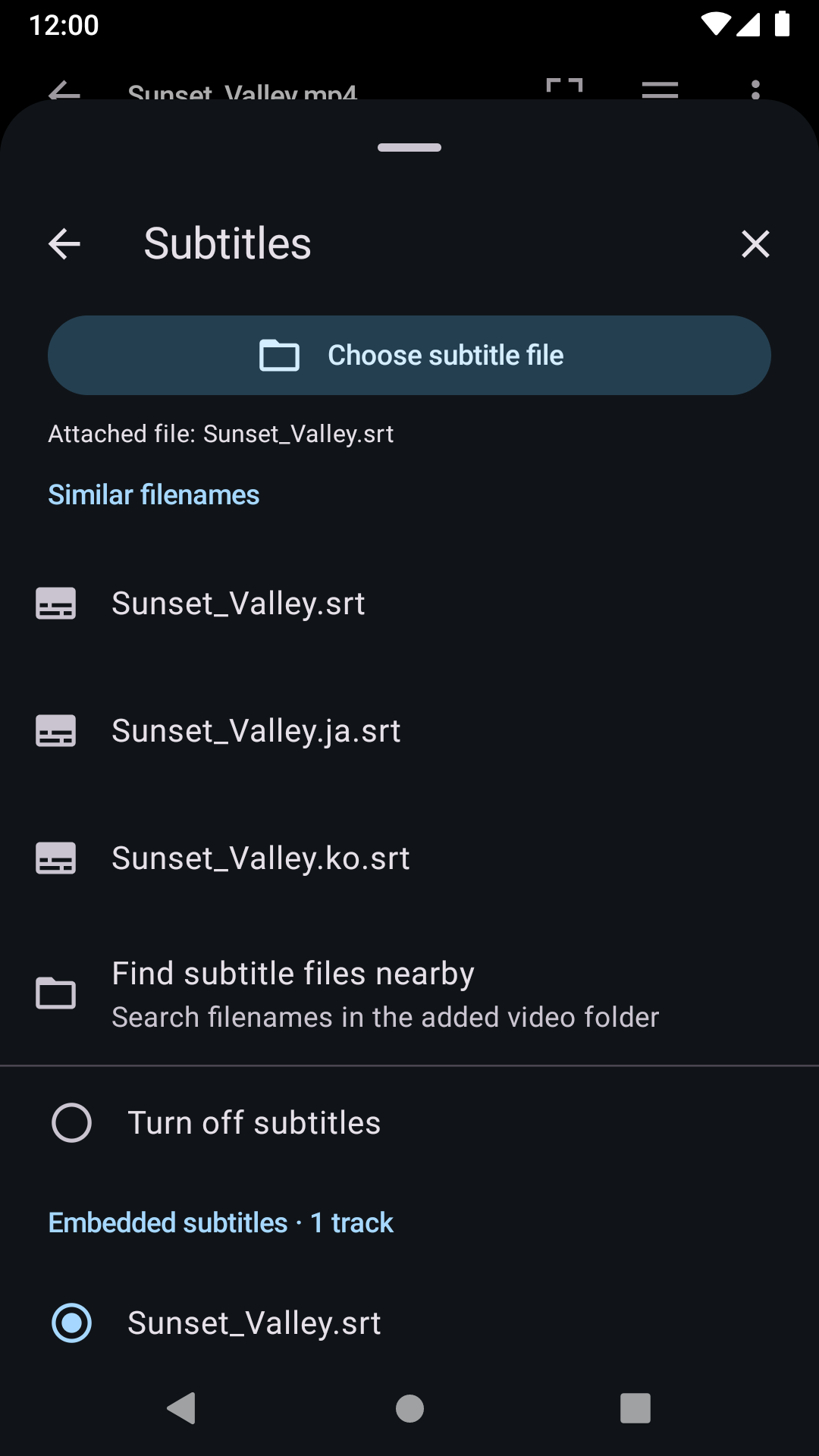
- Tap the subtitle icon at the bottom or Subtitles in the Playback menu.
- Under Similar filenames, tap the file to attach. Files with similar names in the added video folder appear first. Find subtitle files nearby searches by filename.
- If it is not listed, use Choose subtitle file. SRT, SMI/SAMI, VTT, ASS/SSA and TTML files up to 4 MB are supported.
- In Size and synchronization, change the subtitle size and timing. + shows subtitles later and − earlier. Enter subtitle offset accepts −10 to +10 seconds with one decimal place.
Subtitles inside the video file are under Embedded subtitles. Tap Turn off subtitles to hide them.
Subtitle size is saved as your default; timing and external subtitle encoding are saved per video. When you open a video in an added folder, a subtitle with exactly the same name is attached automatically.
Add folders and find videos
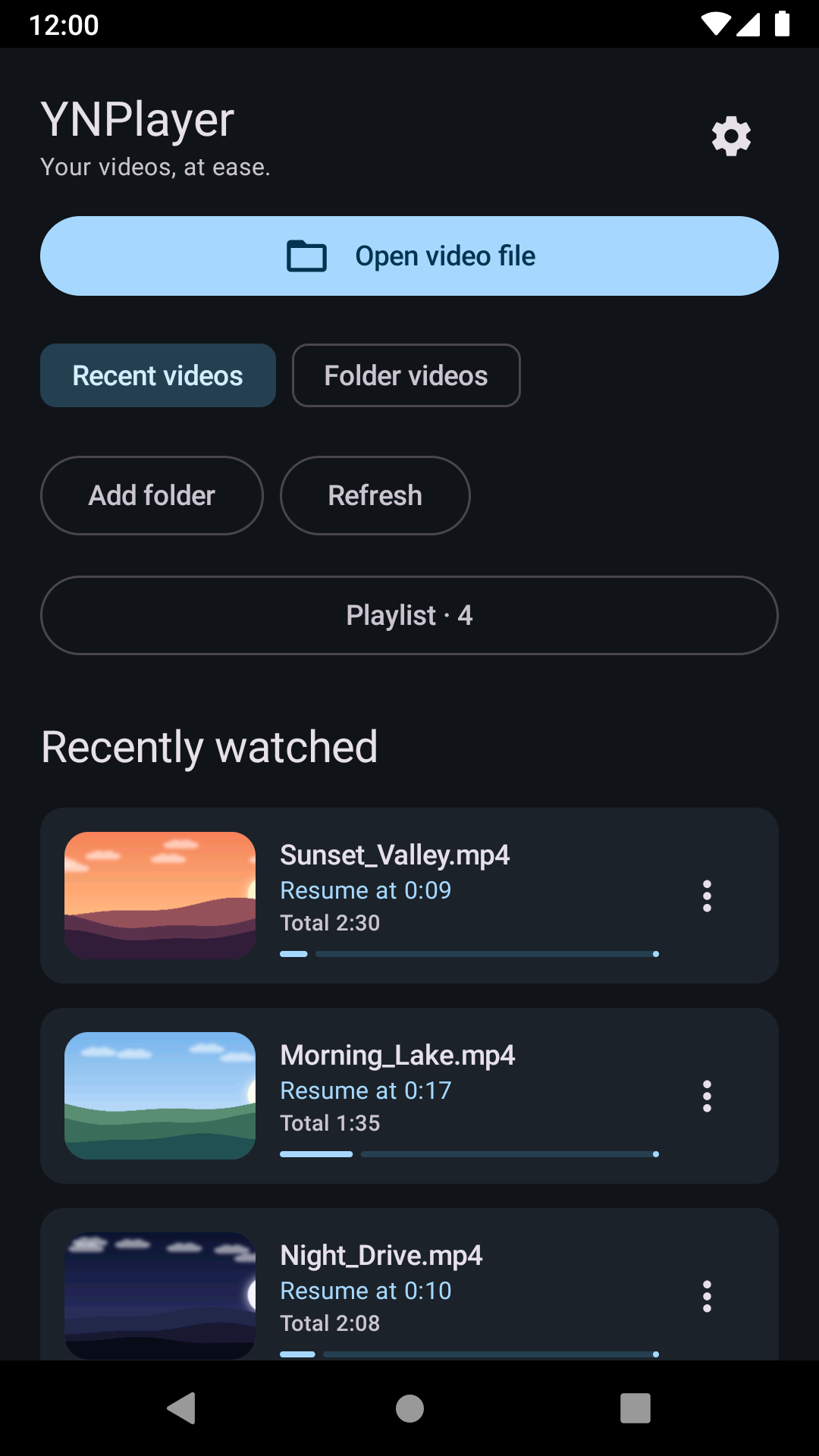
- Tap Add folder on the first screen and select a folder that contains videos.
- Folder videos lists videos in its subfolders too. Use search, sorting (Name, Recently modified, File size) and Unwatched only to find a video.
- Recent videos shows thumbnails, resume positions and progress. From an item’s ⋮, choose Play from the beginning, Add to playlist or Remove from recents.
Removing from recents keeps your playback history and the original video.
If folder access expires, tap Reconnect folder and select the original folder. Use Remove folder for folders you no longer need.
Build a playlist
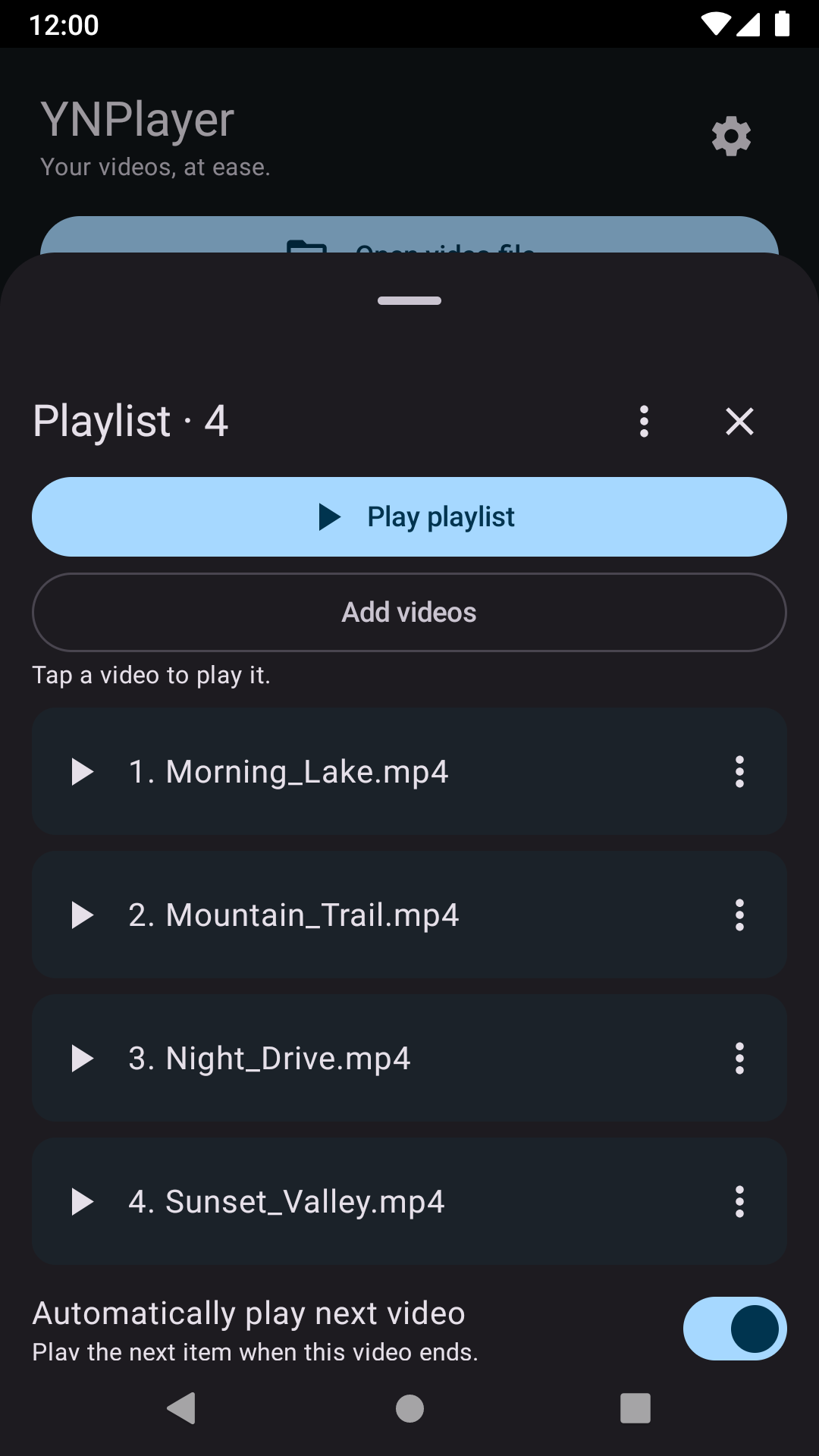
- Choose ⋮ → Add to playlist on a video, or tap Play list in Folder videos.
- Open the playlist and tap Play playlist to start from the top or Resume to continue the current video. Tap a video to play it.
- Use Add videos to add device files or Google Drive videos. Adding does not change what is playing.
- Use an item’s options for Up, Down and Remove, and Playlist options for Clear. With Automatically play next video on, the next item plays when a video ends.
The playlist is saved on this device.
Watch Google Drive videos
- In Open video file or the playlist’s Add videos, tap Choose from Google Drive.
- The first time, choose a Google account to connect, then pick the videos. If you pick several, choose Play now or Add to playlist.
- For subtitles, choose a subtitle file (up to 4 MB) from the same Google account in the subtitle settings. It is remembered for that video.
- Use Settings at the top right of the first screen, or Settings in the Playback menu, to check or change the Google Drive account or disconnect it from this app.
Google Drive no longer requires separate test-account registration.
The app opens only the files you pick. Drive videos need an internet connection while playing.
Changing accounts removes the previous account’s videos from the playlist. Disconnecting does not change your Google files or account permissions.
Picture in picture
- Tap Picture in picture in the Playback menu.
- Keep watching in the small window while using other apps. Tap the window and use Android’s expand button to return to the app.
- If the window does not open, check that picture-in-picture is allowed for YNPlayer in your device’s app settings.
Leaving the player any other way pauses playback and saves your position. Audio playback with the screen off is not supported.
Settings and storage
Saved as defaults
Subtitle size, screen fit and preferred language are saved as defaults and apply to other videos.
Remembered per video
Playback position, subtitle and audio track choices, external subtitles and their encoding, and subtitle timing are kept separately for each video.
Subtitle defaults
In the subtitle settings, Subtitle defaults covers automatic attachment of matching subtitles, external subtitle encoding (Automatic, UTF-8, UTF-16, Korean CP949, Korean EUC-KR) and preferred language (Automatic, Korean, English, Japanese). Changing the preferred language resets track selection for the current video.
Where data is stored
Recent videos, playback positions, playlists and settings are saved only on this device and are not sent to a developer server.
Large screens
On foldables and resizable windows such as Samsung DeX, the controls adapt to the window, with Fullscreen and Show playlist buttons.
Keyboard shortcuts
↑ Back to contentsUse these with a Bluetooth or USB keyboard, or in Samsung DeX. Press Ctrl+/ in the app to see the list.
| Shortcut | Action |
|---|---|
| Space | Play / pause |
| Left / Right | Seek back / forward 10 seconds |
| Ctrl+O | Open file |
| Esc | Close panel / exit expanded player |
| Ctrl+/ | Show shortcuts |
| F11 | Toggle fullscreen |
Troubleshooting
↑ Back to contents“Cannot open video” appears
This device cannot play the file’s codec or format. Use Open with another player in the message, or choose another file. Playback information shows the state, and Copy information lets you attach it to a report.
It says there is no file access
The file was moved or deleted, or the storage does not keep access. Select the same file again with Open video file to reconnect its history and playlist entry. For added folders, use Reconnect folder.
Subtitle text is garbled
In the subtitle settings, open Subtitle defaults → external subtitle encoding and try Korean CP949, Korean EUC-KR or UTF-16. The encoding is saved per video.
Subtitles are early or late
In Size and synchronization, tap + (later) or − (earlier), or enter an offset in seconds. Reset timing restores it.
A subtitle file will not open
Check that it is SRT, SMI/SAMI, VTT, ASS/SSA or TTML and no larger than 4 MB. SMI files without SYNC times, or with times out of order, cannot be read.
A Google Drive video will not play
Check your connection, and reconnect the account in Settings if authorization has expired. If the file changed, select it again in Drive. If requests are limited, try again later.
Picture in picture will not open
Allow picture-in-picture for YNPlayer in your device’s Settings → Apps.
The volume gesture does nothing
Devices that do not allow volume changes show “Volume adjustment is unavailable on this device”. Use the device’s volume buttons.
If the problem continues, tell us your device model, Android version, app version and what happened. Send feedback
Supported systems and formats
Android 8.0 or later. English, Korean and Japanese, following your device language.
Plays videos (MP4, MKV and others) whose codecs your device supports. Playback depends on the file’s codecs and your device.
External subtitles: SRT, SMI/SAMI, VTT, ASS/SSA, TTML (up to 4 MB). Complex ASS effects and fonts may be shown only in part.
YNPlayer does not provide videos or subtitles; use files you have the right to access. It does not request full storage access and reads only the files you pick and the folders you add.
Downloads