01
Open a file. Enjoy the essentials.
A lightweight, uncluttered player for local videos and music. Focus on playback without ads or a separate account.
 View larger ↗
VIDEO & MUSIC PLAYER
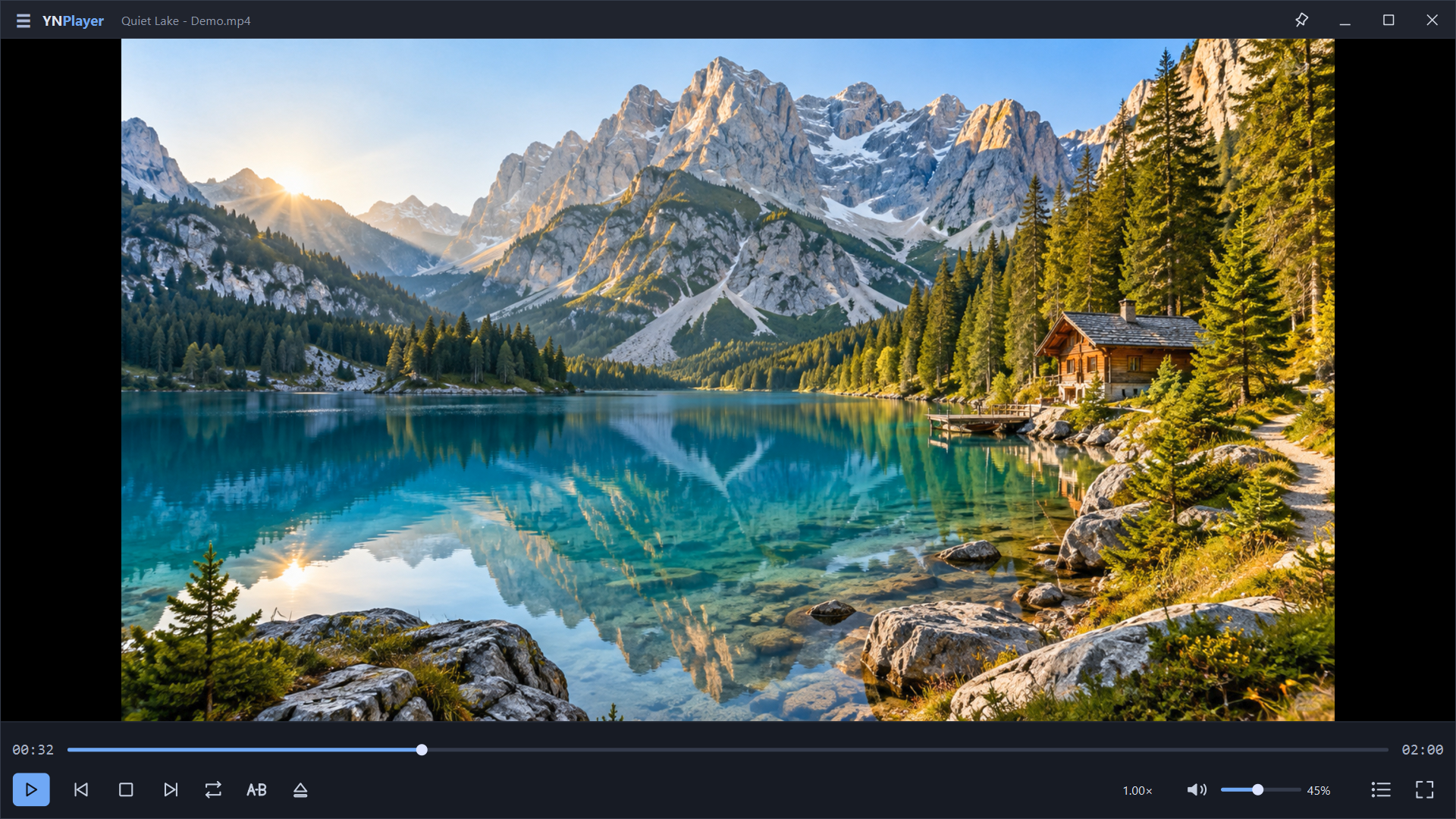
The essentials, clearly arranged. Open a local file and fine-tune speed, subtitles and A–B repeat for comfortable viewing and learning.
Windows x64 · Ubuntu 24.04 x64 · Android
Free for personal and business use · No ads · Just the essentials
View larger ↗Screenshots show actual app UI. New Windows screenshots use AI-generated nature, cinematic and learning samples, original subtitles and design variants. The existing music and file-information examples are retained. Torrent tasks and figures are isolated demo data, not speed benchmarks. The interactive comparison is a separate web demo; Ubuntu layouts may differ.
MADE FOR THE WAY YOU USE IT
A lightweight, uncluttered player for local videos and music. Focus on playback without ads or a separate account.
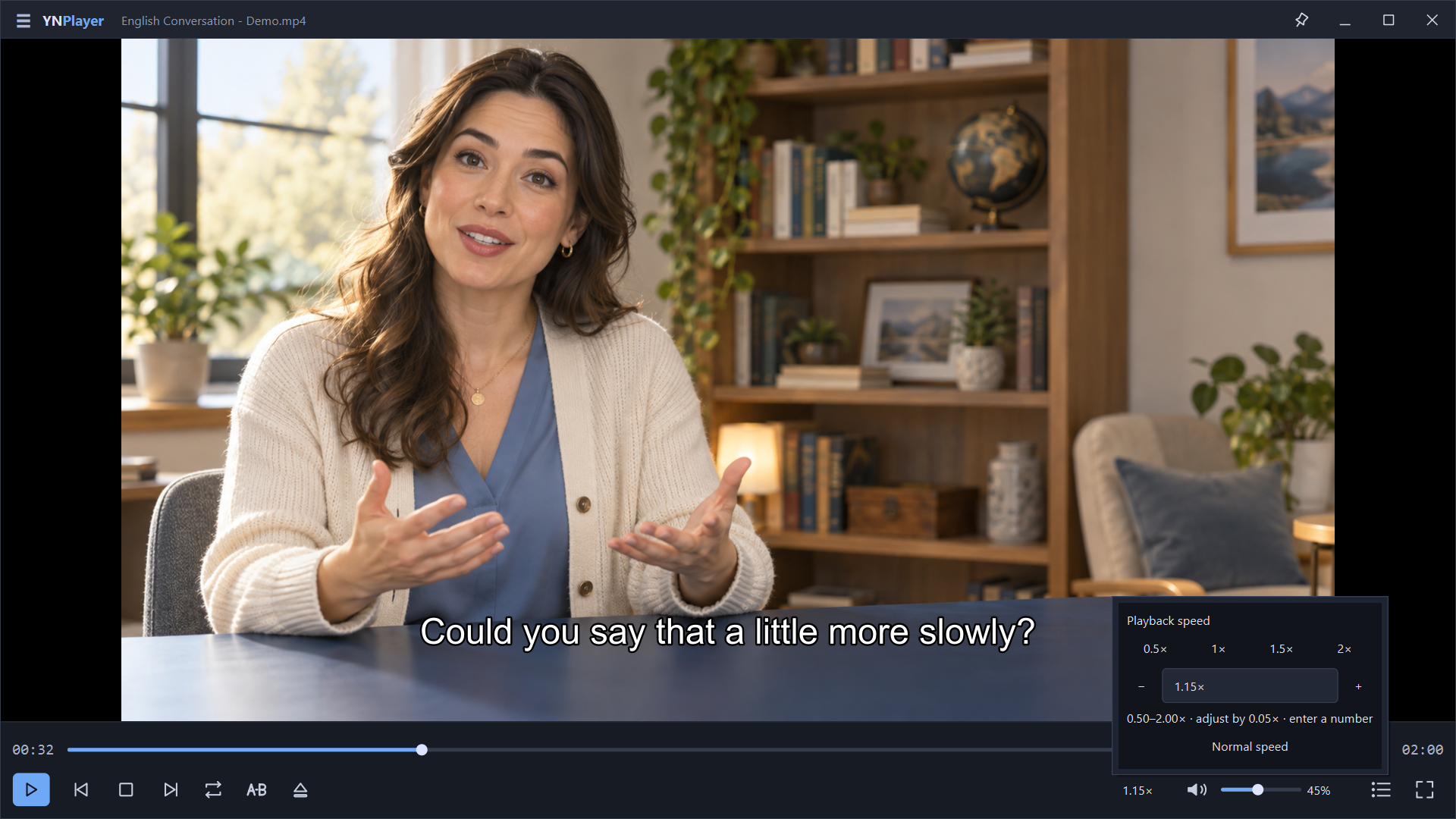
View larger ↗Adjust from 0.5× to 2× in 0.05× steps, or enter a value directly. If 1.10× feels slow and 1.25× feels fast, try 1.15× for a conversation or lecture.
 View larger ↗
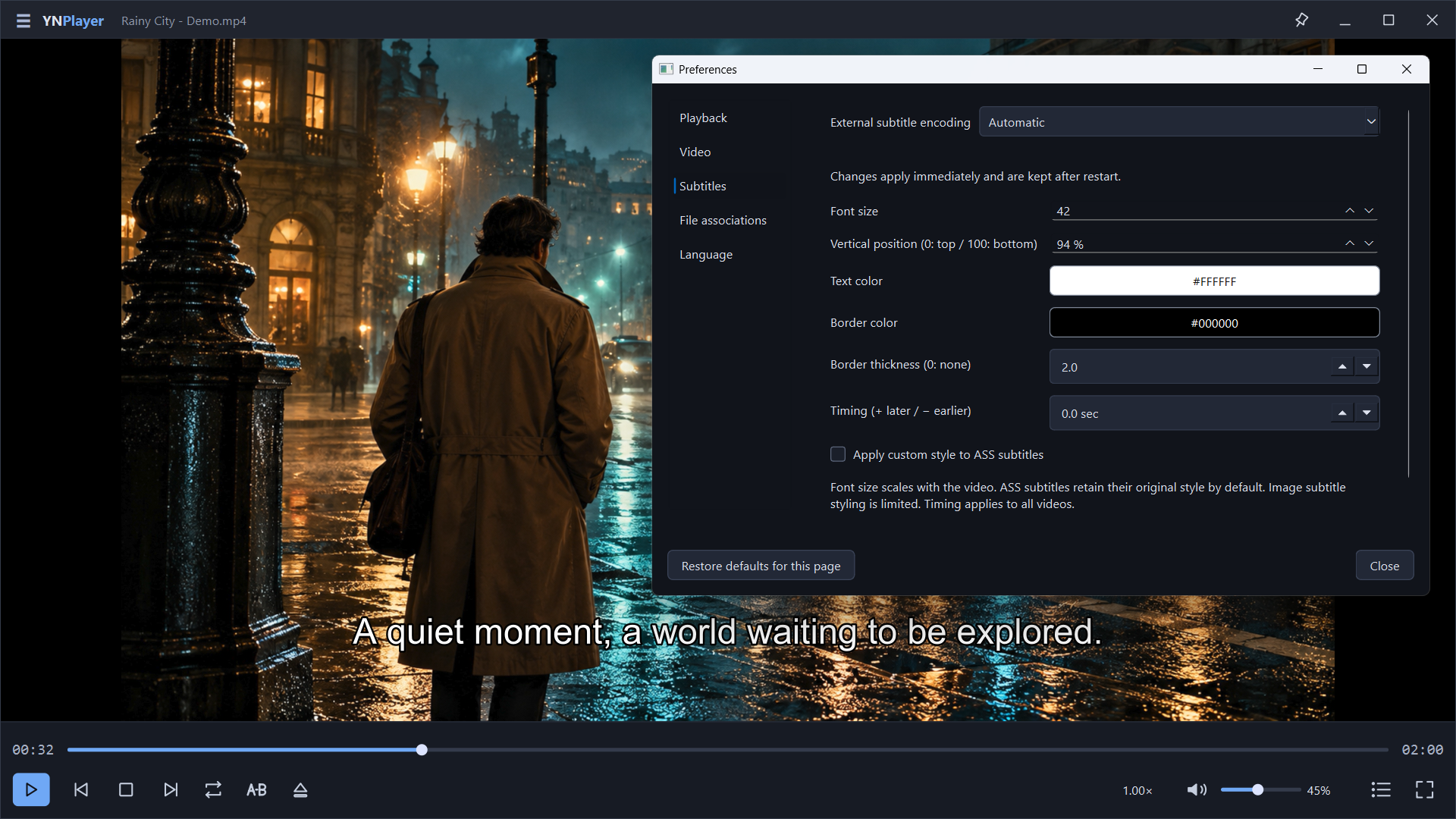
Open subtitle files manually or find them automatically in the same folder as the video. Adjust size, position, color, outline and timing. Keep original ASS styling or apply your settings. Appearance changes for image subtitles are limited.
 View larger ↗
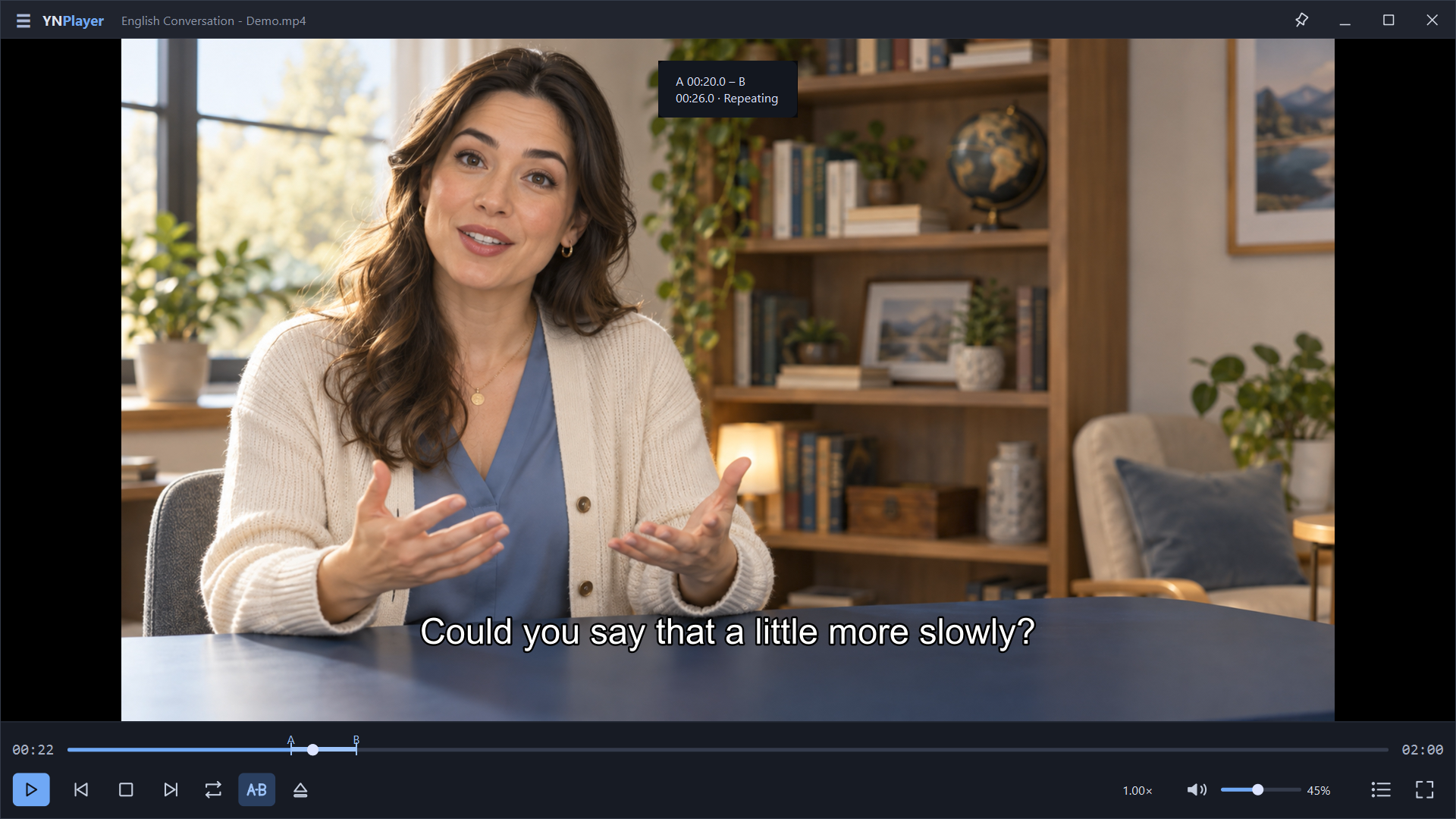
Set points A and B to repeat the passage you need. Markers and the highlighted range on the seek bar help you follow the loop while practicing.
 View larger ↗
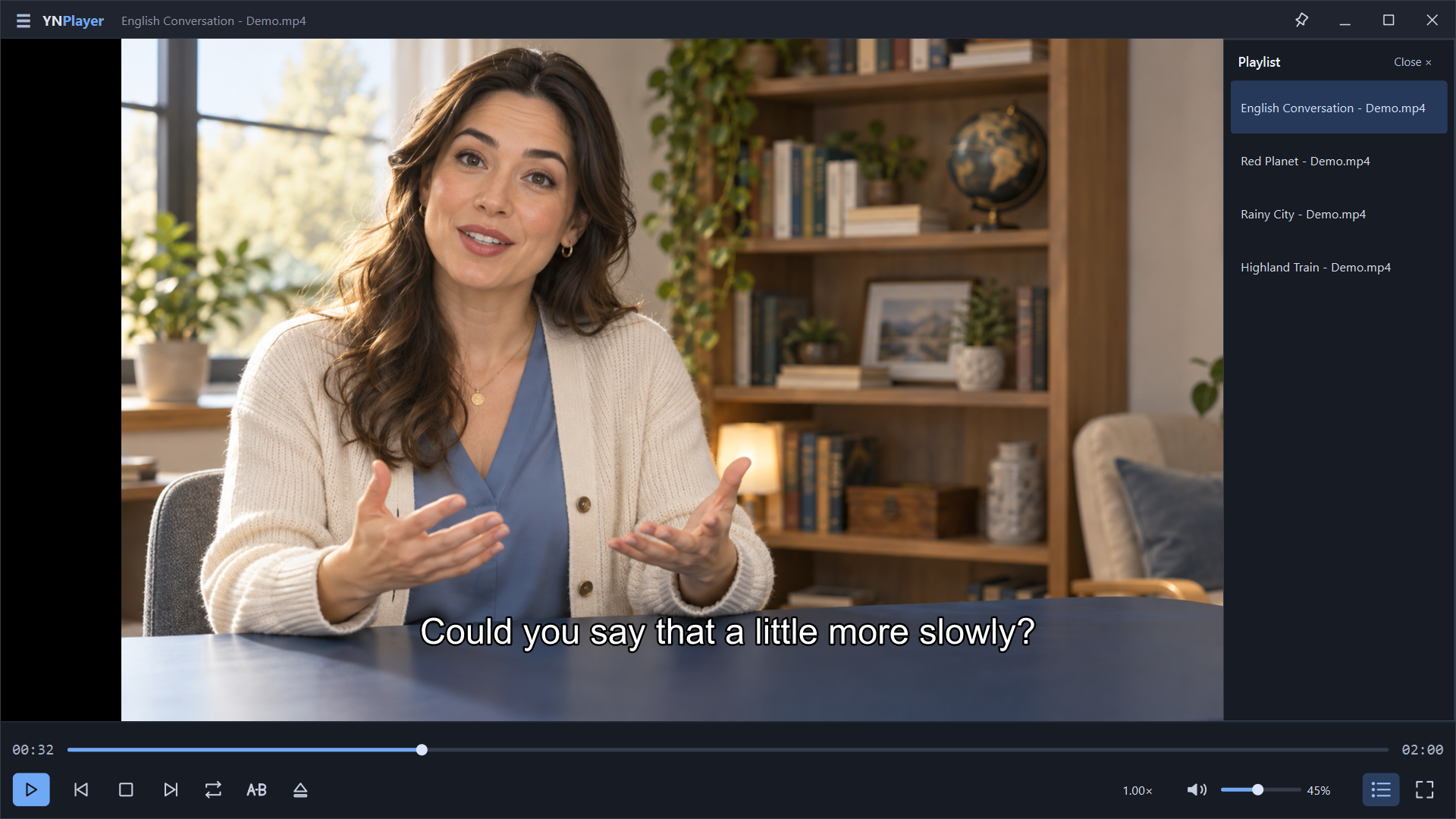
Keep landscapes, cinematic scenes and learning videos in one list. Use repeat, shuffle and optional resume to watch your way.
 View larger ↗
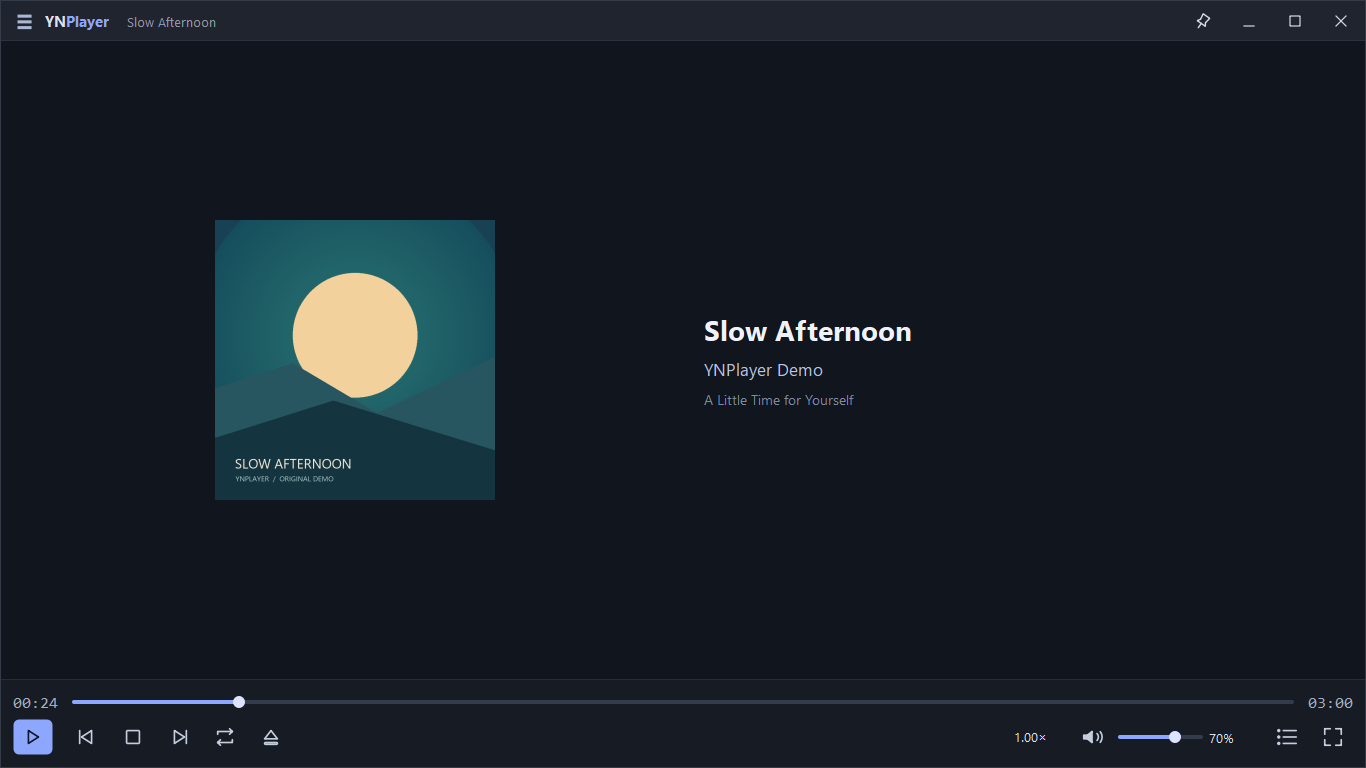
See album art, title, artist and album information embedded in the file. Enjoy music and video together in one playlist.
 View larger ↗
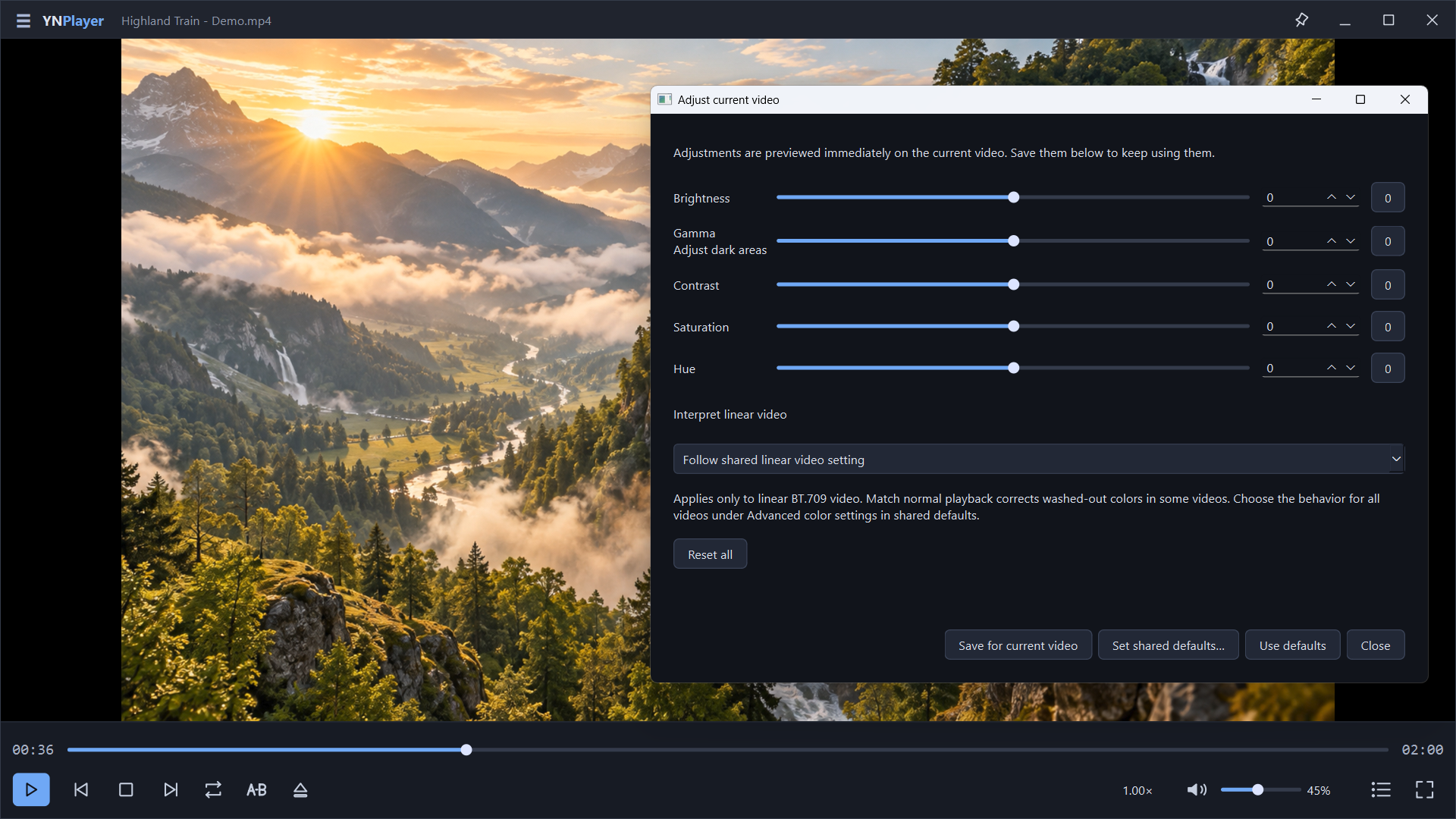
Preview brightness, gamma, contrast, saturation and hue adjustments. Keep your original file intact and save settings for a video when needed.
 View larger ↗
ANDROID
Watch the videos on your device and the Google Drive files you choose, with subtitles, speed control and resume.
Android 8.0 or later · English, Korean, Japanese
Get it on Google Play — YNPlayer AndroidInstall and update from Google Play.
Privacy policy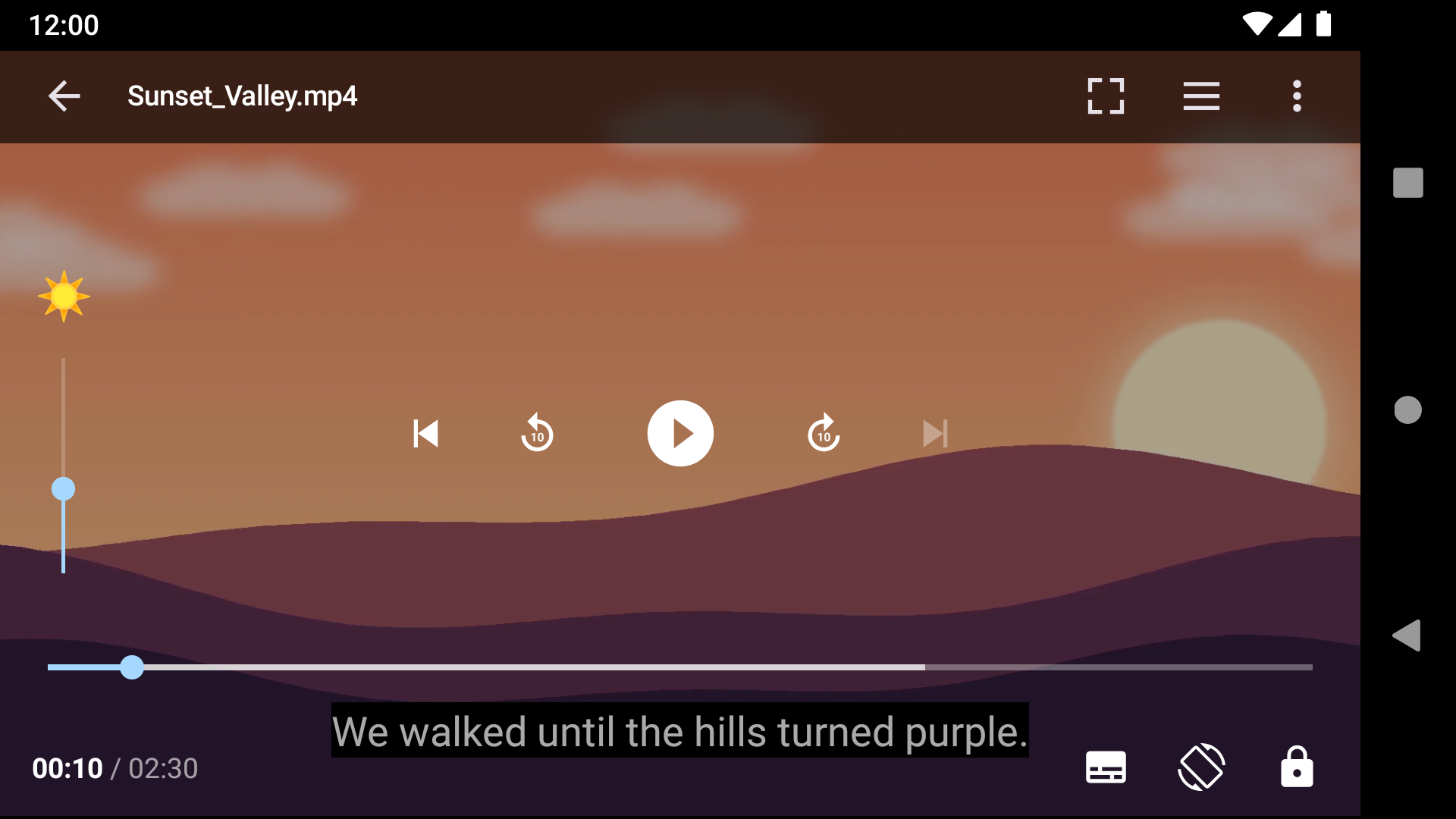
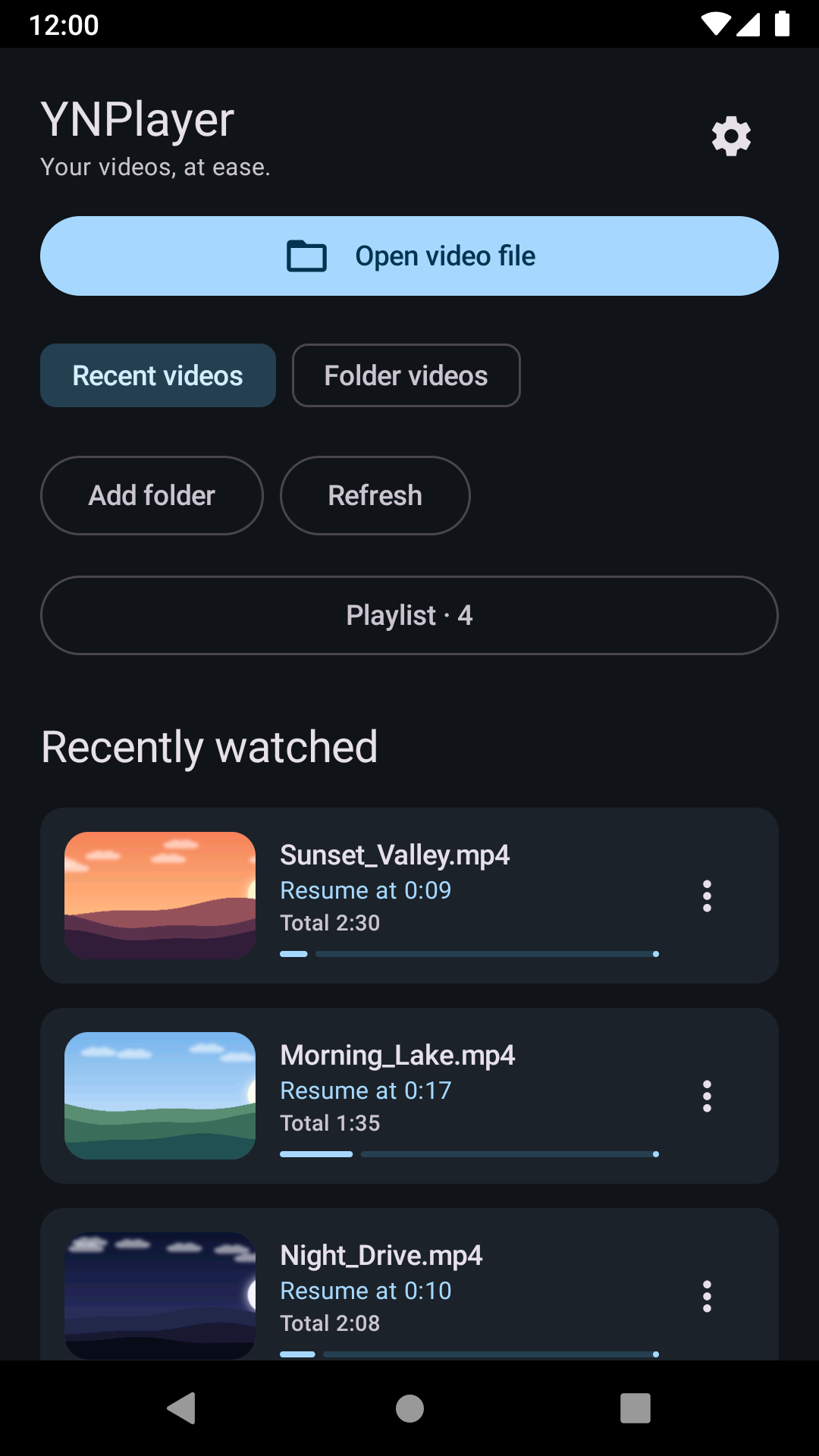
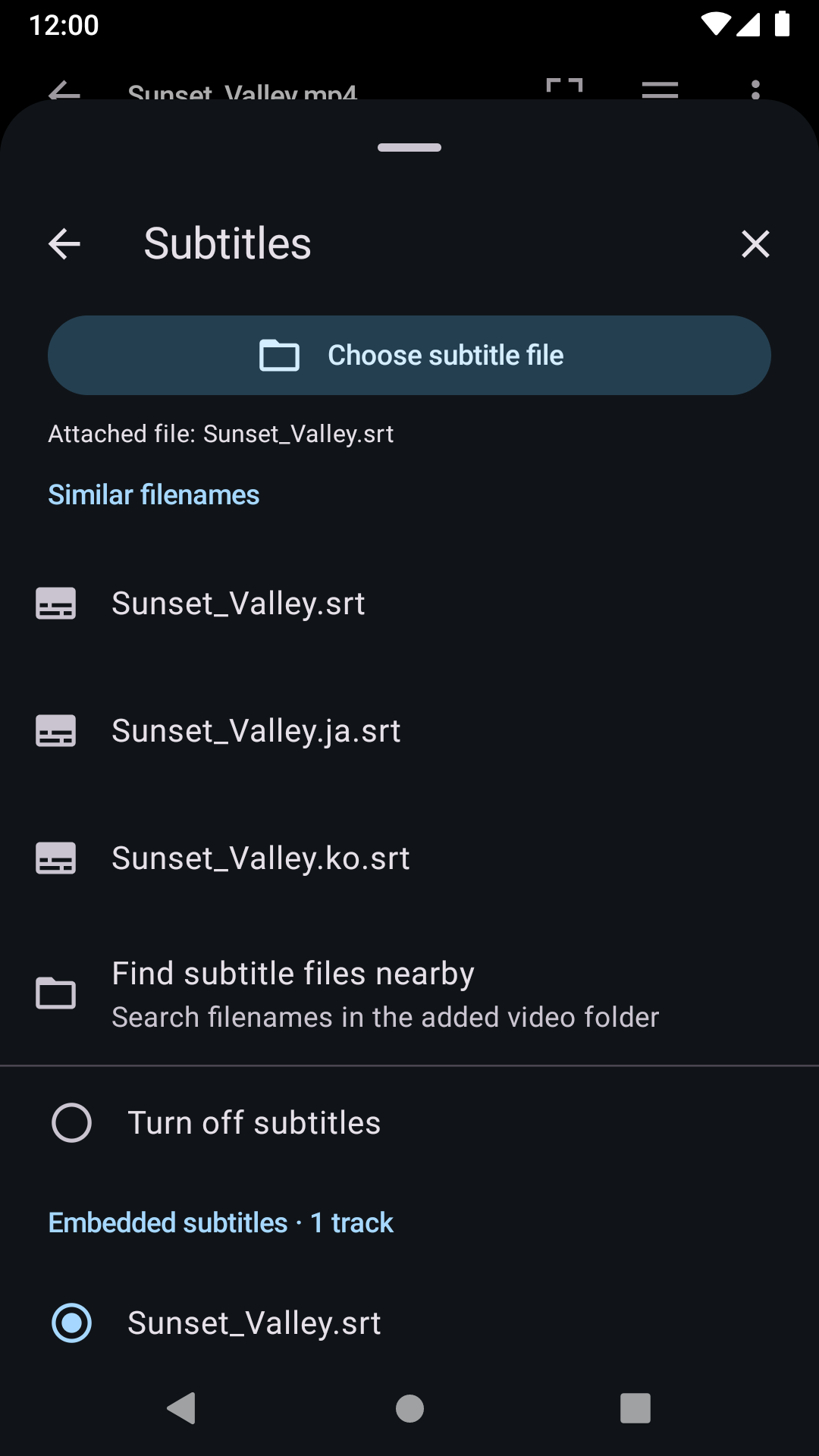
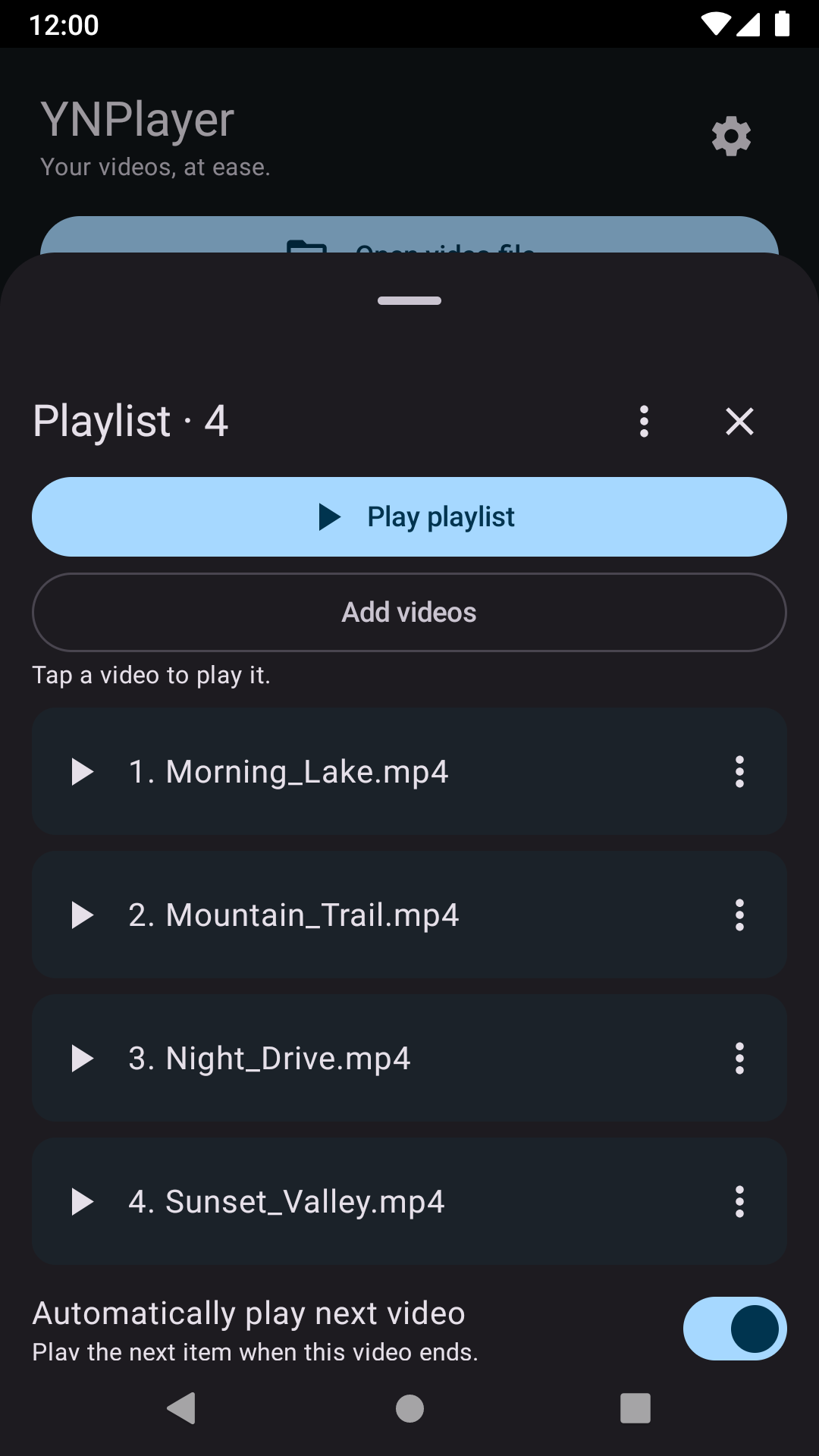
Android 0.9.2 emulator captures · videos and subtitles are original demos.
READY IN A FEW STEPS
Supports Windows x64 and Ubuntu 24.04 x64. Plays local video and audio files. Available codecs and hardware acceleration depend on the playback engine and your PC. A-B repeat is supported from Windows 1.0.4. See the download information below for currently available versions.
Current downloads: Windows (Microsoft Store) v1.0.21.0 · Ubuntu 24.04 x64 v1.0.22-1.
Free for personal and business use · No ads · Just the essentials
Windows x64 · Ubuntu 24.04 x64 · Android