Install and launch
- Install YNSong with the Google Play button below. Updates also come from Google Play.
- Launch YNSong from your app list. The Library, Queue, Lists and Settings tabs are at the bottom.
- The app follows your device language and supports English and Korean, with English for other languages. On Android 13 or later you can choose an app language in system settings.
Open your first file
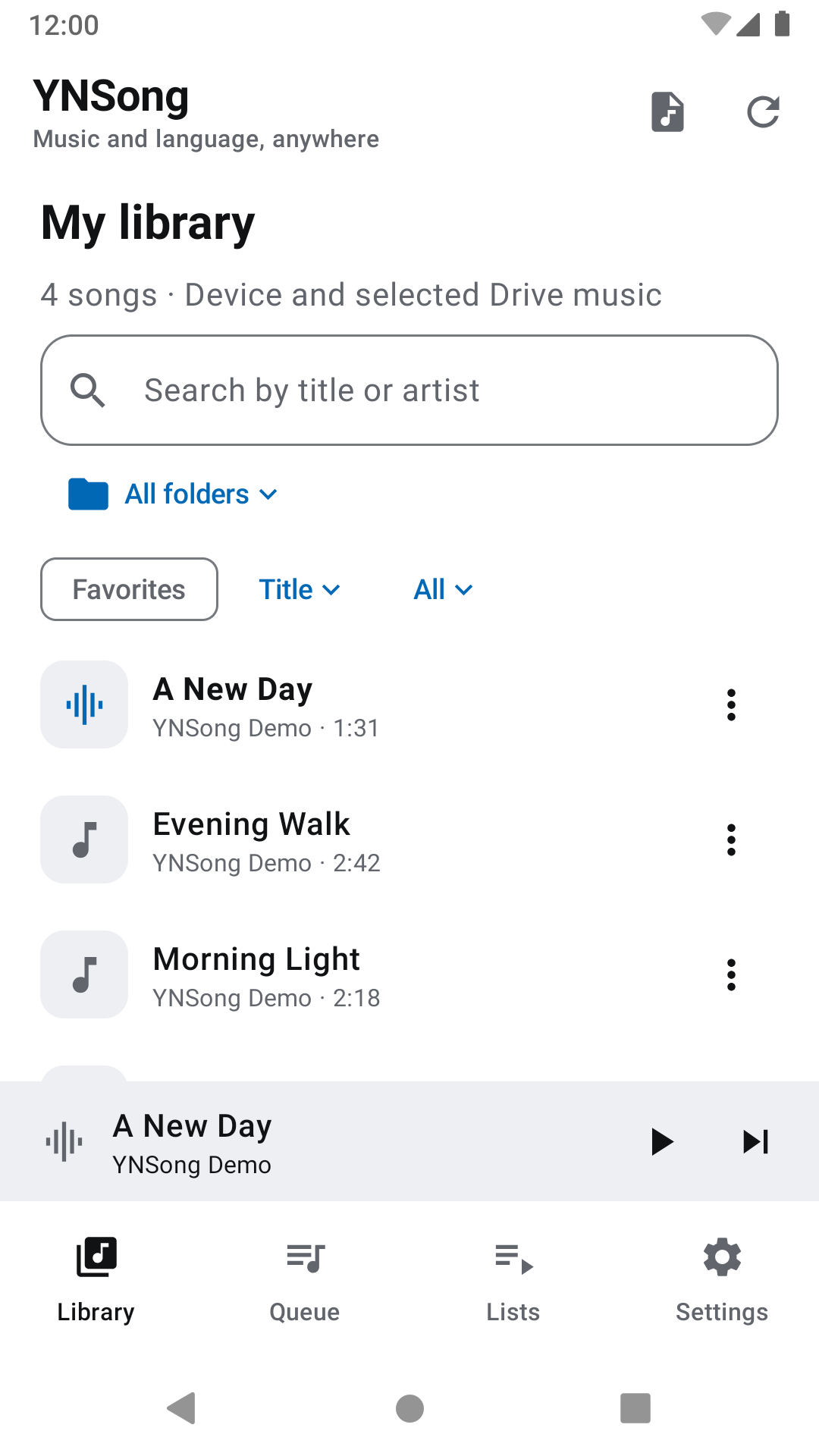
- On the Library tab, tap Allow music access to load the music on your device.
- Tap a song to play it. A mini player appears at the bottom.
- Tap the mini player to open the player, and switch between its Play, Lyrics and Study tabs.
- For files outside your device library, tap Open file at the top right and choose Choose from device or Choose from Google Drive.
Even without music access, you can pick songs with Open file.
Your last queue and position are saved automatically and restored, paused, when you reopen the app. After adding or deleting music, tap Refresh music at the top right.
Step-by-step tasks
A–B loop
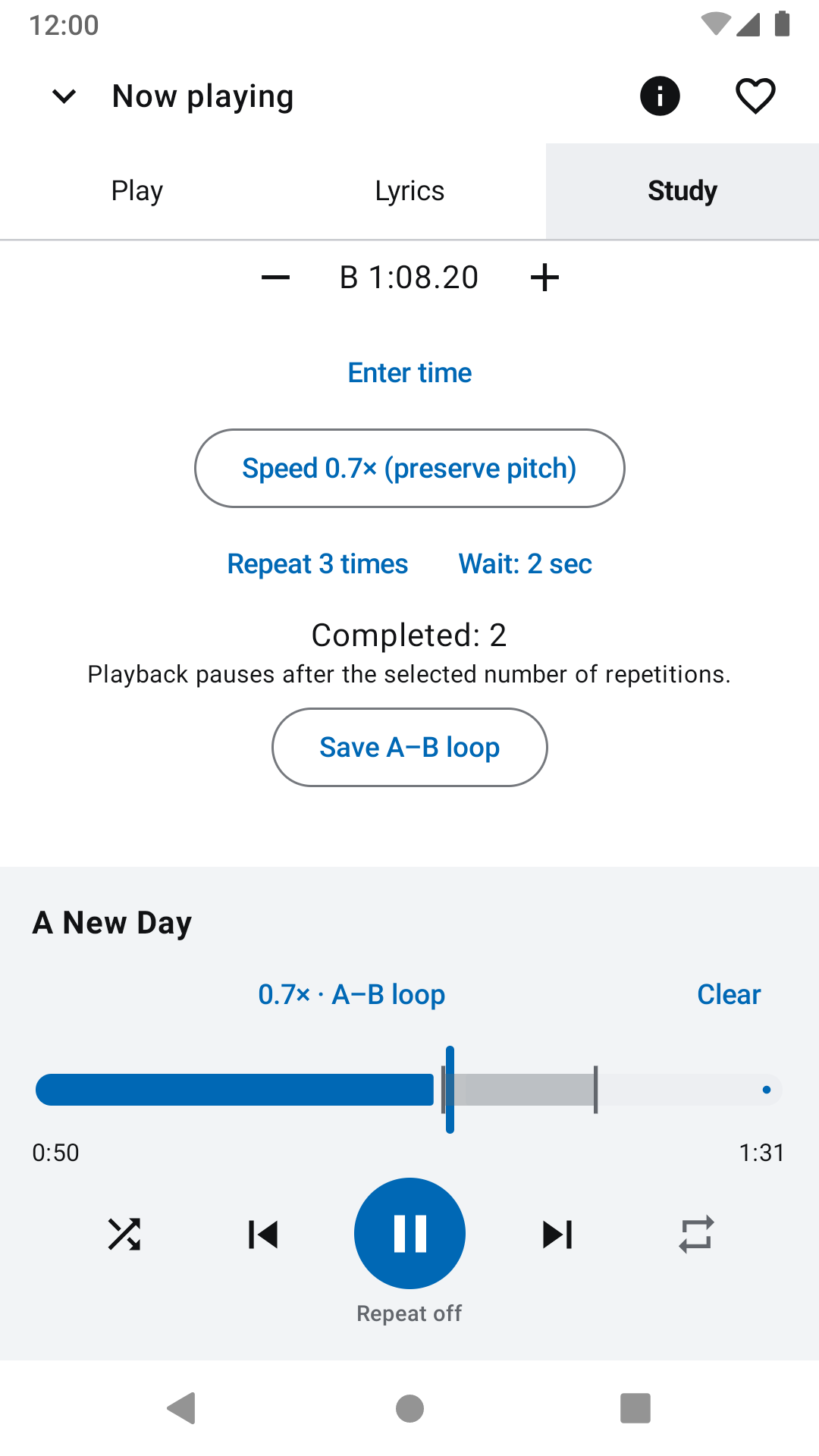
- In the player, open the Study tab.
- Tap Set A where the sentence starts and Set B where it ends. A loop must be at least 0.5 seconds long.
- Use − / + beside the A and B times to move them by 0.1 seconds, or type a time such as 1:23.450 in Enter time.
- Use −5 sec and +5 sec to move around and check the loop.
The loop is marked on the seek bar. Reset study settings clears the loop and the speed.
Speed, repeats and pauses
- Use the speed button on the Study tab to choose 0.5, 0.7, 0.8, 1, 1.2, 1.5 or 2×. The pitch stays the same.
- Choose Repeat indefinitely or 3, 5 or 10 times. Playback pauses after the last repeat.
- Choose a 0, 2, 3, 5 or 10-second wait to pause between repeats and speak along.
The Study tab shows completed repeats and a “Time to repeat aloud” cue.
Bookmarks and resume
- With a loop set, tap Save A–B loop; without one, tap Save current position.
- Enter a bookmark name and save.
- Bookmarks for the current song appear at the bottom of the Study tab. Tap one to jump to it, or use Edit and Delete.
Turn on Resume each file in Settings to play selected files from their last saved position.
Follow the lyrics
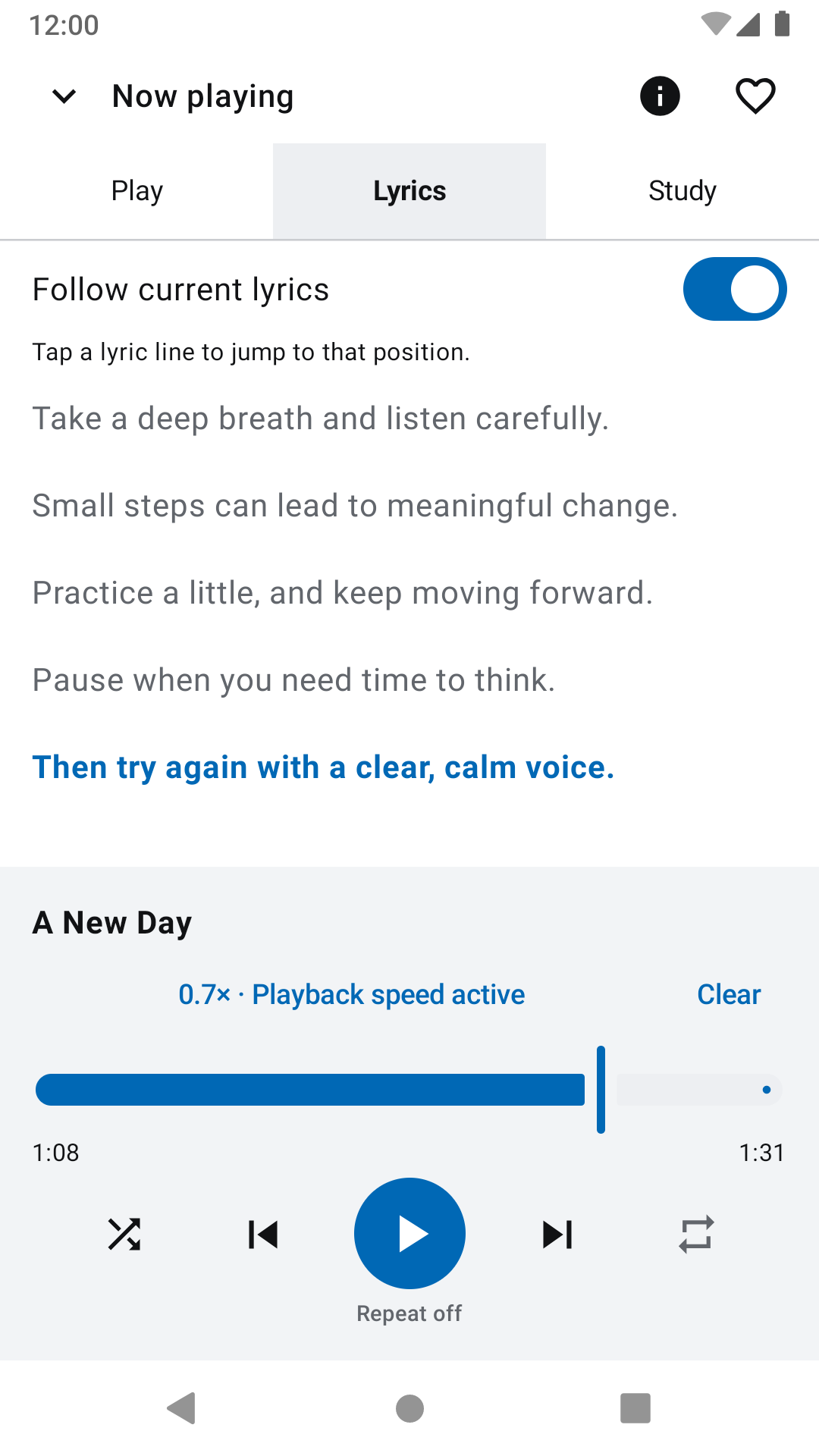
- In the player, open the Lyrics tab.
- Turn on Follow current lyrics to keep the playing line in view and highlighted.
- Tap a timestamped line to jump there. After scrolling, tap Return to current lyrics.
Only embedded lyrics in supported MP3 files are shown. Without them, “This file has no embedded lyrics.” appears.
Library, queue and playlists
- In Library, search by title or artist, choose a folder, filter favourites, sort (Title, Artist, Recently added) and browse All, Albums or Artists.
- From a song’s menu (⋮), choose Play next, Add to end of queue or Add to favorites. Reorder or remove songs on the Queue tab.
- On the Lists tab, create a New playlist, tap Add songs, choose songs and save. In the editor, drag the handle on the right to reorder.
- In the player, the repeat button switches between Repeat off, Repeat all and Repeat one; the shuffle button turns shuffle on or off.
Deleting a playlist keeps your music files.
Sleep timer and background playback
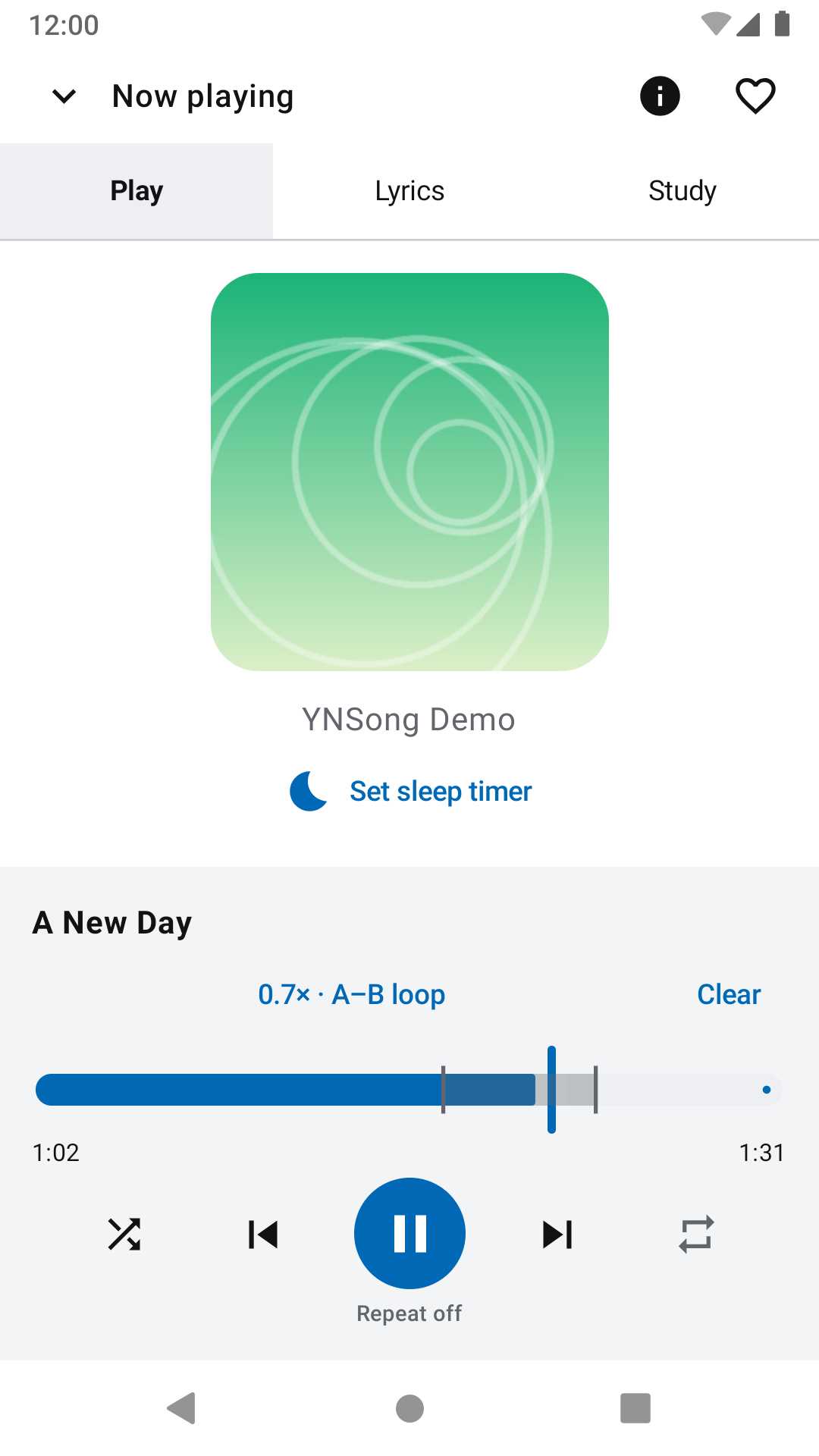
- Tap Set sleep timer in the player and choose 15, 30, 60 or 90 minutes to stop playback then. Cancel timer turns it off.
- Playback continues after you leave the app or turn off the screen. Control it from the notification and lock screen.
- Add the YNSong widget to your home screen for Previous, Play and Next.
Clearer speech (EQ)
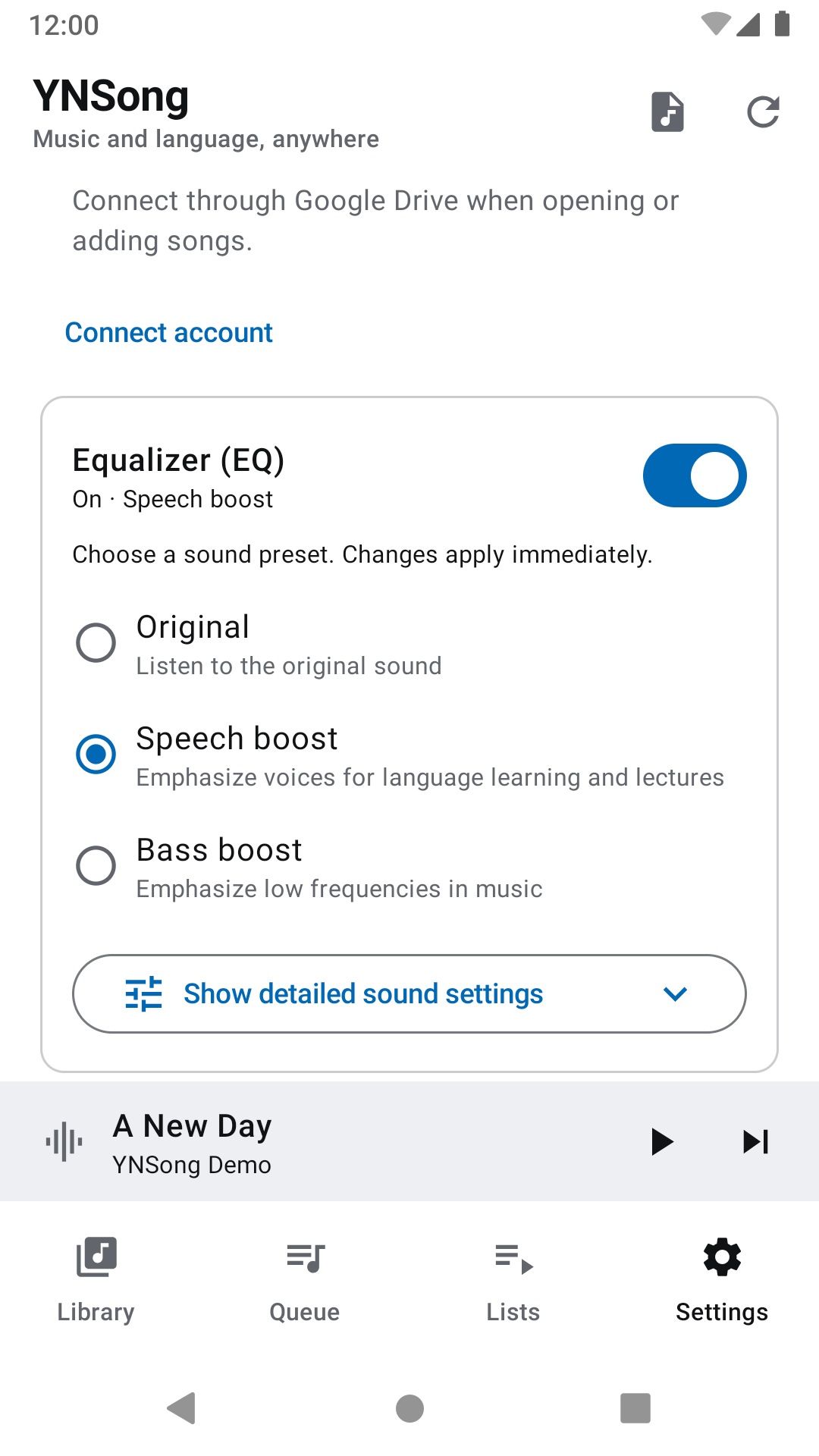
- While a song is playing, turn on Equalizer (EQ) on the Settings tab.
- Choose Original, Speech boost or Bass boost. Changes apply immediately.
- Show detailed sound settings lets you adjust each band from Bass to High treble.
The equalizer becomes available once audio is playing. If it stays unavailable, your device may not support it or another app may be using it.
Listen from Google Drive
- In Open file or Add songs to queue, tap Choose from Google Drive.
- The first time, choose a Google account, then pick the audio files.
- Selected songs stay in your library and playlists, and play again without re-selecting while the same account is connected.
- Manage Connect account, Change account and Disconnect under Google Drive account on the Settings tab.
YNSong plays only the files you pick. It does not browse your whole Drive, sync folders or download for offline use.
Disconnecting stops Drive playback for that account and clears its temporary cache. Saved lists and bookmarks remain and work again when you reconnect the same account. Revoke Google access separately in your Google account settings.
Settings and storage
Theme
Choose System settings, Light or Dark on the Settings tab.
Resume each file
When on, selected files play from their last saved position.
Refresh library
Updates the library after you add or delete music on your device.
App language
On Android 13 or later, choose YNSong’s language in system settings. Earlier versions follow the device language.
Where data is stored
Playlists, bookmarks and preferences are stored locally in the app and are not sent to a developer server.
Large screens
On foldables, resizable windows such as Samsung DeX, and in landscape, the library and player appear side by side.
Keyboard shortcuts
↑ Back to contentsUse these with a Bluetooth or USB keyboard, or in Samsung DeX. Press Ctrl+/ in the app to see the list.
| Shortcut | Action |
|---|---|
| Space | Play / pause |
| Left / Right | Seek back / forward 10 seconds |
| Ctrl+O | Open file |
| Esc | Close panel / exit expanded player |
| Ctrl+/ | Show shortcuts |
Troubleshooting
↑ Back to contentsNo music in my library
Tap Allow music access. If you denied it before, use Open app permissions. After copying music to the device, tap Refresh music, and check your search and folder filters.
I cannot set B
Set A first, then set B at least 0.5 seconds later. Typed times must also make a loop of at least 0.5 seconds within the file’s length.
No lyrics appear
Only embedded lyrics in supported MP3 tags are shown; online lookup and external LRC files are not supported. If lyrics cannot be read, check file access.
The equalizer will not turn on
Start playing a song first. If it is still unavailable, your device may not support it or another app may be using it.
A Google Drive song will not play
Check your connection and reconnect the account in Settings. The connected account must be the one you chose the song with. If the file changed, select it again in Drive.
“Could not connect to playback” appears
Close the app completely and open it again.
If the problem continues, tell us your device model, Android version, app version and what happened. Send feedback
Supported systems and formats
Android 8.0 or later. English and Korean.
Playable audio formats and equalizer support depend on your device.
Lyrics are limited to supported embedded MP3 tags; online lyrics lookup and external LRC files are not supported.
YNSong does not provide songs or courses; use audio you have the right to access.
Downloads