About the screenshots and demo media +
Screenshots show actual app UI. New Windows screenshots use AI-generated nature, cinematic and learning samples, original subtitles and design variants. The existing music and file-information examples are retained. Torrent tasks and figures are isolated demo data, not speed benchmarks. The interactive comparison is a separate web demo; Ubuntu layouts may differ.
Install and launch
Windows · x64
- Choose Install from Microsoft Store on the Downloads page. It opens the Store webpage.
- Install from Store, then find the app in the Windows Start menu. Store also supplies updates. The Ubuntu DEB on this website is not a Windows installer.
Ubuntu 24.04 · x64
- Download the DEB for Ubuntu 24.04 x64. It will usually be saved in your Downloads folder.
- Open the DEB with a software installer, or open a terminal in the folder containing it and run the command below. apt handles the package dependencies.
- After installation, find the app in your applications menu. Choose default file associations in your operating system settings.
sudo apt install ./YNTorrent-1.0.8-ubuntu-amd64.debThe command uses the filename currently offered on this website. If the DEB is in another folder, change to that folder first. Installation may require administrator authentication.
Current downloads: Windows (Microsoft Store) v1.0.14.0 · Ubuntu 24.04 x64 v1.0.8. The Windows instructions refer to the 1.0.1 series with Korean and English UI. Ubuntu 24.04 amd64 1.0.8 provides Korean/English UI and Help (Alt+H) with User guide, immediate Check for updates and About YNTorrent. The manual result dialog provides an official download-page button. Quiet weekly checks run only while the app is open and show a small Update button; disable them in Settings. There are no automatic popups, downloads, installations or restarts. The previous Ubuntu 1.0.1 displayed website guidance only. Menu locations and wording can vary by installed version.
Choose a downloadOpen your first file
- Open YNTorrent and select Add… in the toolbar. Paste a magnet address or use the file picker to open a .torrent file.
- Use Browse… beside Save folder to choose a writable folder. If entering the path yourself, use an absolute path.
- For a .torrent containing multiple files, check the files you want and select Add download. A magnet file list appears only after metadata has been fetched.
- Check status, progress, and download/upload speeds in the list. A task starts automatically when a download slot is available; other tasks wait.
Pieces already received can be uploaded while downloading. Zero-byte transfer is not guaranteed during the short interval between the completion stop request and the connection closing.
A magnet download can begin before you select its files. When the file list appears, change the selection in Details and apply it.
Step-by-step tasks
Add a torrent file
 View larger ↗
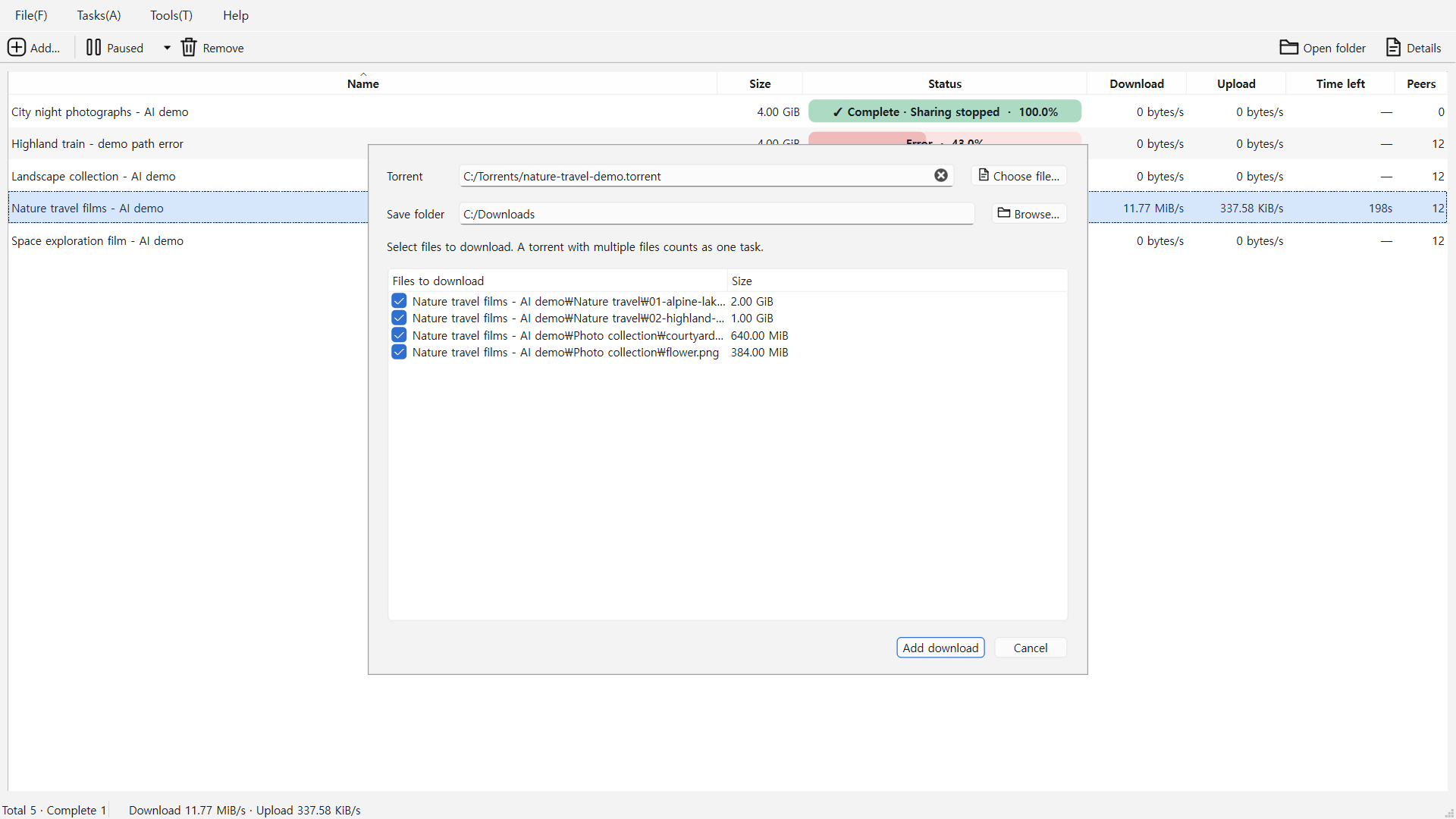
In steps 1–3, check Torrent and Save folder at the top and select the file checkboxes below. All four files are selected in this example; keep only the ones you need. Finish with Add download at the lower right.
Windows capture · demo media.- Choose the torrent file action in File or press Ctrl+O to select a .torrent file. You can also drop the file onto the window.
- In Add download, check the Save folder and Files to download. Uncheck files you do not need.
- Select at least one file and choose Add download. A torrent counts as one download task even when it contains multiple files.
If you select multiple .torrent files, their add dialogs appear in sequence. Check the save location for each task.
Magnets and file selection
You cannot change file selection for a completed task.
 View larger ↗
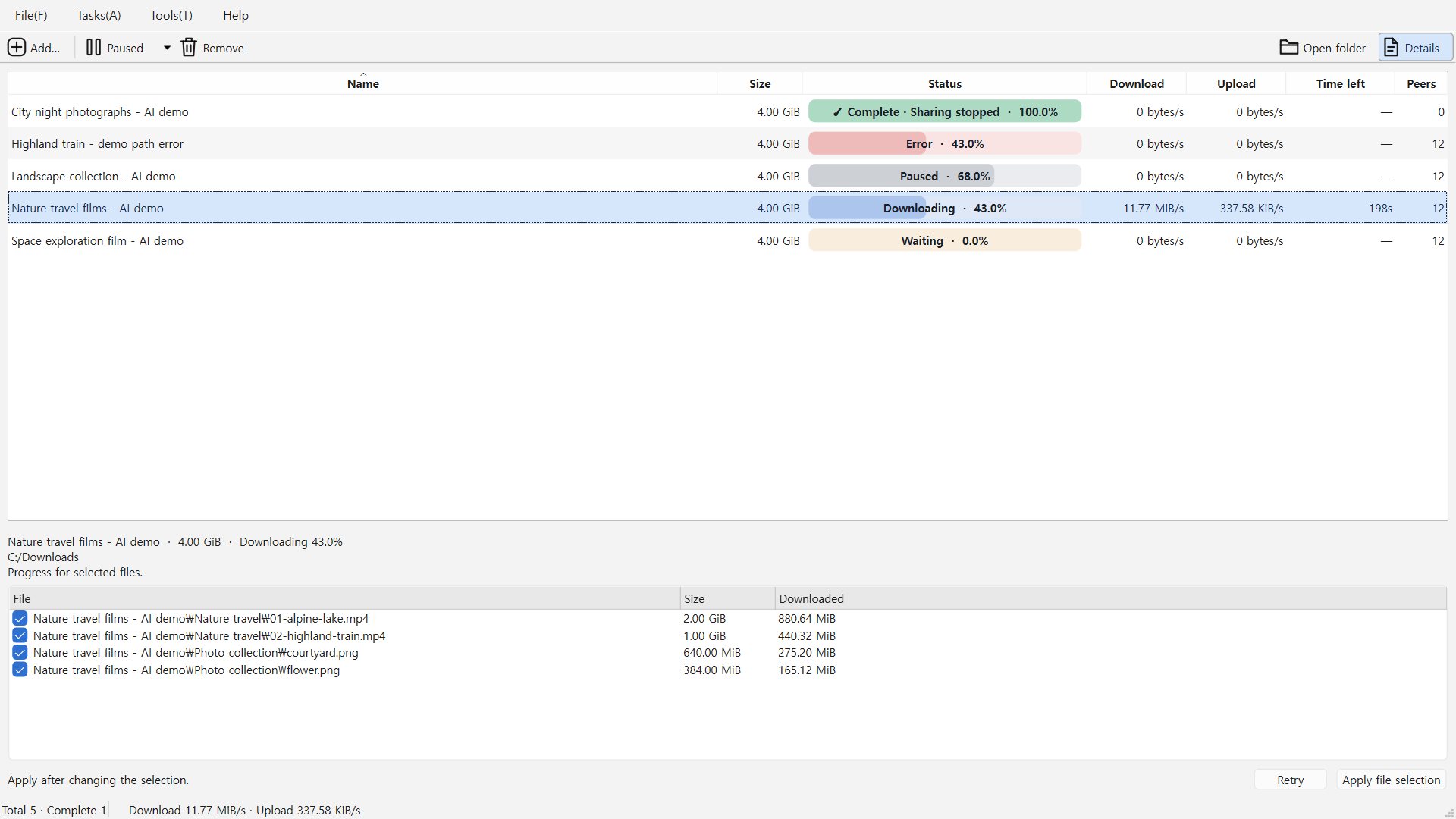
Opening Details in steps 2–3 reveals the file list and Apply file selection button at the bottom. This is an isolated .torrent download example. It does not show a magnet link waiting for metadata.
Windows capture · demo media.- Press Ctrl+L or select Add… and paste an address beginning with magnet:. Check the save folder and add it.
- Wait for metadata. Select one task in the list and open Details to check whether its file list is available.
- Change the file checkboxes and select Apply file selection. Changing checkboxes alone does not apply the download selection.
Use Pause to stop downloading rather than unchecking every file. A selection must contain at least one file.
Queue and task priority
- Select the task you want to receive first. Use Ctrl or Shift to select multiple tasks.
- In the task menu or context menu, choose Download priority → High, Normal, or Low.
- Open Tools → Settings, adjust Maximum concurrent downloads, and Save. Other tasks start from the queue when a slot becomes available.
Priority applies to download tasks in the queue. There is no high/low priority setting for individual files. High priority cannot ensure faster downloads when peers are absent or slow.
Pause and resume
- Select a task and choose Pause. You can select several tasks to pause them together.
- To continue, select the task and choose Resume. If it waits, it will start when a concurrent download slot is available.
- When all selected files are complete, sharing is stopped. Check the completed status and Details to confirm that sharing has stopped.
Automatic queue handling does not restart tasks you paused manually. Completed tasks stay stopped after restarting the app or selecting Resume.
Inspect status and retry
 View larger ↗
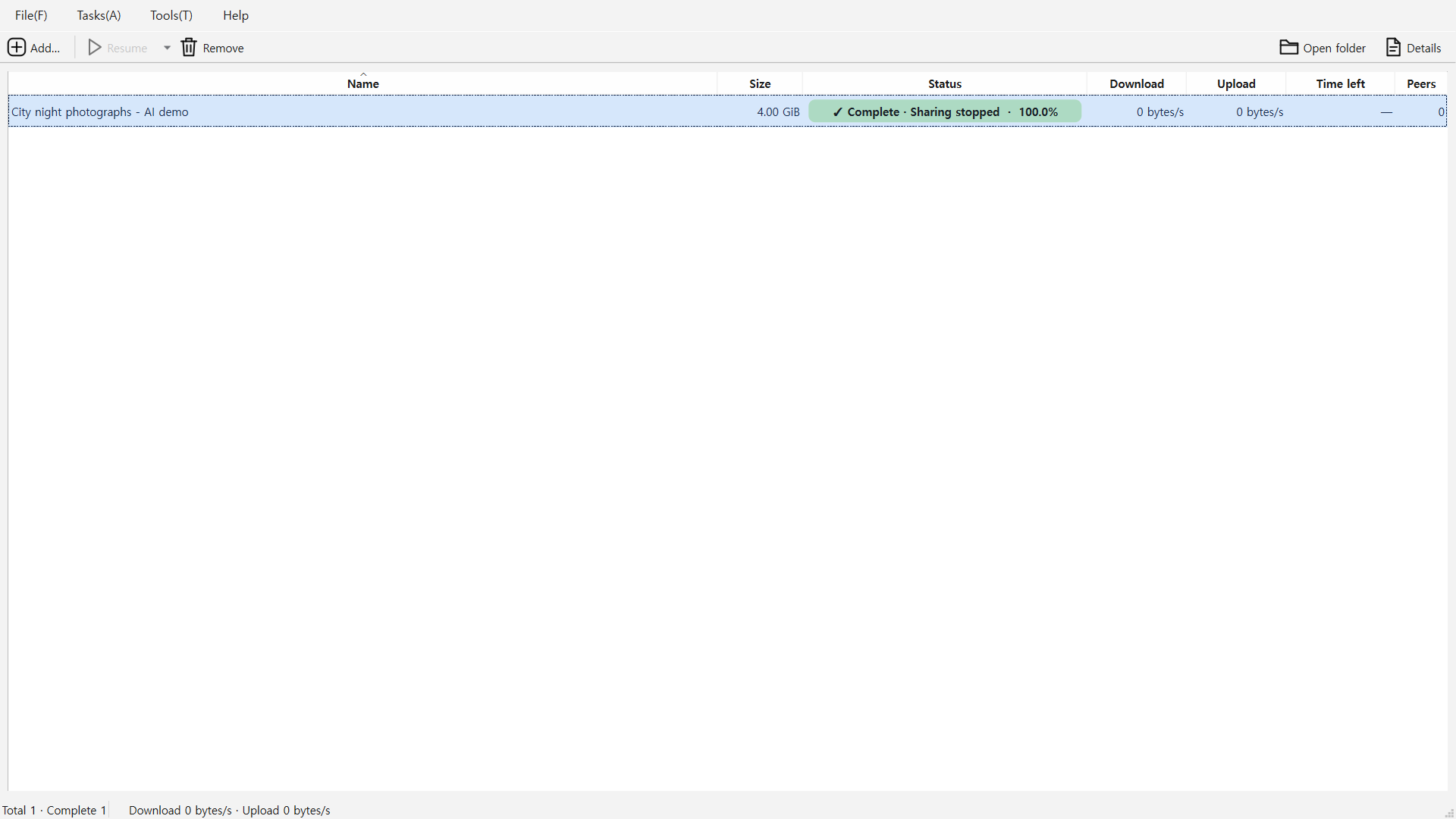
As in step 1, select the task at the top and read its Status and the transfer rates below. This isolated completed example shows Complete · Sharing stopped and 100%. It does not demonstrate Internet transfer speed.
Windows capture · demo media.- Select one task with a problem and open Details. Read its diagnosis, peer count, save path, and recent errors.
- Resolve connection or save-folder issues. Waiting for metadata or peers can also mean that no peer is currently sharing the content.
- If Retry is enabled, select it. The task re-enters the queue while respecting the concurrent download limit.
For a manually paused task, use Resume. Retry does not restart paused or completed tasks. Recent errors shows up to eight entries from the current app session.
Remove tasks and find saved files
Remove from list unregisters the task and does not delete downloaded files.
- Select a task and use Open save folder to check where its downloaded files are stored.
- Choose Remove from list and confirm. If several tasks are selected, the action applies to all of them.
- Downloaded files remain in the save folder. To clean them up too, remove the task and then delete the files yourself in your operating system’s file manager.
Hide the window or exit
- By default, X hides the window and keeps downloading when a system tray is available. A notice appears the first time.
- Click the tray icon to reopen the window. To change X behavior, open Tools → Settings, change hide-to-tray behavior, and Save.
- To quit completely, use File → Exit, Exit in the tray menu, or Ctrl+Q, and respond to the confirmation if shown.
If the desktop has no system tray, X exits the app. Tray support on Ubuntu depends on the desktop environment in use.
Settings and operating systems
 View larger ↗
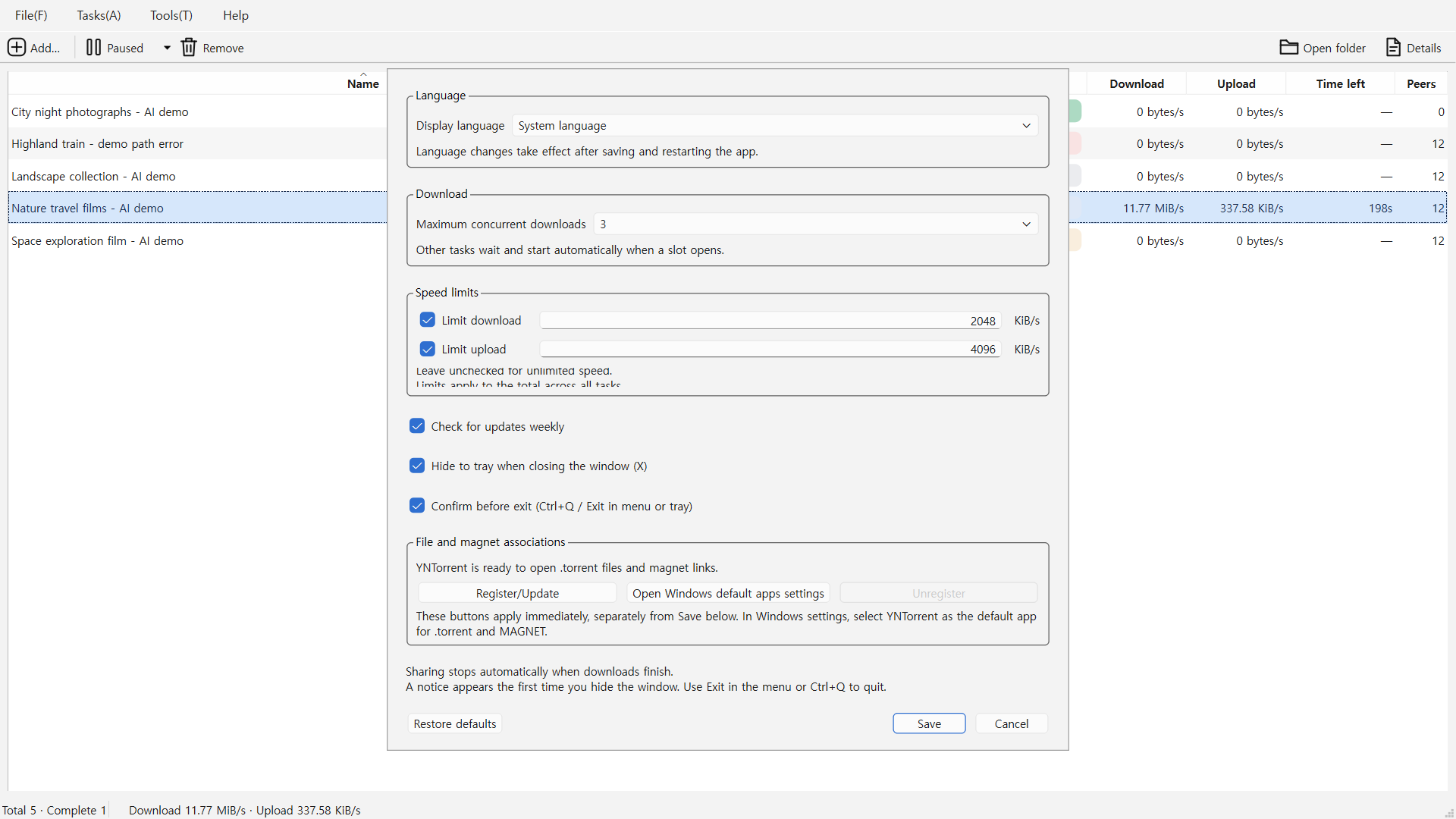
Open Tools → Settings to find Downloads and Speed limits. Enable a limit with its checkbox, enter a value, then select Save at the bottom. The displayed limits and background task metrics are examples, not recommended values or benchmarks.
Windows capture · demo media.Download slots and speed limits
In Tools → Settings, choose 1–10 concurrent downloads (default: 3). Check each download/upload limit you want, enter 1–1,000,000 KiB/s, and Save. Limits apply to the total across all tasks. Leaving a limit unchecked means unlimited speed, not blocked uploads. 1024 KiB/s equals 1 MiB/s. Restore defaults also requires Save to take effect.
Language and Ubuntu version differences
In the bilingual Windows version, choose System language, 한국어, or English under Display language in Settings, Save, and restart the app. Ubuntu 1.0.1 also supports choosing a language, saving, and restarting.
Close button and exit confirmation
You can configure hide to tray on X and confirmation before exit. Hiding to the tray requires an available system tray. Save your changes. Exit in the menu and Ctrl+Q request app exit rather than hiding the window.
Windows file and magnet associations
In Settings, select Register/update, then Open Windows default apps settings and choose YNTorrent for .torrent and MAGNET. These association buttons apply immediately, separately from Save or Cancel. Associations are Windows-only. On Ubuntu, open the app and add files or magnets directly.
Keyboard shortcuts
↑ Back to contentsThese keys are confirmed for Windows and Ubuntu. Underlined menu letters are different from Ctrl shortcuts. Some task actions are disabled depending on the task state.
| Shortcut | Action |
|---|---|
| Ctrl+O | Add torrent files |
| Ctrl+L | Open the magnet add dialog |
| Ctrl+Q | Request app exit |
| Ctrl / Shift + click | Select multiple tasks in the list |
Troubleshooting
↑ Back to contentsThe magnet file list does not appear
Magnet metadata must be fetched from peers. Check the connection and peer count, then read the diagnosis in Details. You can use Retry when enabled, but the list cannot be fetched immediately if no peer is sharing the metadata.
Speed is zero or the task is waiting
Waiting can mean that the task is queued for a download slot. Check the maximum in Settings and the active tasks. Zero peers, or peers that are not sending data, can also result in zero speed. Read the diagnosis in Details and check speed limits.
My file selection has not changed
After changing checkboxes in Details, choose Apply file selection. Select just one task and check that metadata is ready. Completed tasks cannot be changed, and at least one file must be selected.
An error stopped the download
Check recent errors and the save path in Details. Check folder write permissions, free space, and the source file, then use Retry if available. For a safety-validation error, check the source and save path, remove the task, and add it again.
It looks as though uploads happened after completion
Pieces may have been uploaded during downloading. Once the selected files finish, the app requests a sharing stop, and brief transfer may remain until connections close. Distinguish stopping-sharing and completed/sharing-stopped states, and confirm the stop in Details.
Downloads continue after closing the window
By default, X hides the window when a system tray is available. Click the tray icon to return, or use File → Exit or Ctrl+Q to quit completely. You can change close-button behavior in Settings.
Files remain after removing a task
Remove from list does not delete downloaded files. Check the save folder and delete files yourself in the operating system’s file manager if needed.
When reporting a problem, include your operating system, installed app version, task status, and error text. Hide magnet addresses, personal file names, and save paths you do not want to disclose. Send feedback
Supported versions and formats
Packages target Windows x64 and Ubuntu 24.04 amd64. The Ubuntu package on this website is version 1.0.8 with Korean/English UI, shared YN accent colors, improved dark-mode contrast and finding-peer/checking states.
You can add .torrent files from 1 byte to 32 MiB and valid magnet: links. Availability also depends on sharing peers and your network environment.
This guide does not promise a macOS package, Ubuntu automatic default-app registration, RSS, remote control, or in-app automatic updates. Use downloads for content you have permission to distribute.
Downloads